
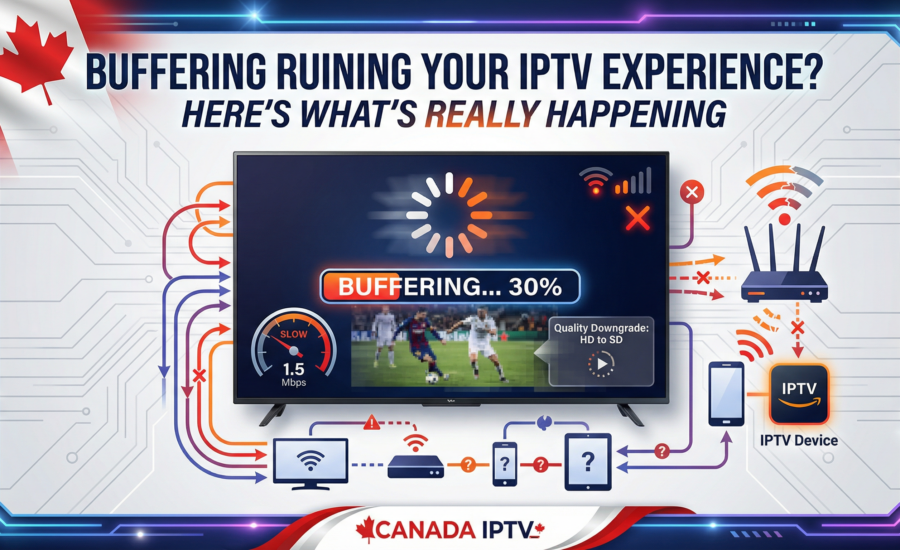
Buffering Ruining Your IPTV Experience? Here's What's Really Happening
You settle in to watch a live hockey game or your favourite series, and within minutes the screen freezes. The picture pixelates. The audio drifts out of sync. If you use an IPTV service on a slower internet connection, these moments are frustratingly familiar.
IPTV — Internet Protocol Television — delivers live TV, on-demand movies, and sports entirely over your internet connection. That flexibility is what makes it such a powerful replacement for cable. But it also means that when your connection slows down, your stream feels it immediately.
The good news: a slow internet connection doesn't have to mean a poor viewing experience. With the right combination of network adjustments, player settings, and device choices, you can dramatically reduce buffering and get a stable, clear picture — even on limited bandwidth. This guide walks you through every step.
💡 Quick Takeaway: Most buffering issues on an IPTV Canada service come from four things — weak Wi-Fi, background network congestion, the wrong video quality setting, and an outdated streaming device. Fix these and most problems disappear.
Why Low Bandwidth Causes IPTV Buffering
Every second of video you stream requires a continuous, uninterrupted flow of data from a remote server to your device. When your download speed drops below what the stream demands, your player has to pause and wait for more data to arrive before it can continue — that pause is buffering.
Resolution makes this much worse. Standard definition (SD) content is relatively light on data and tolerates connection fluctuations well. HD and 4K streams are far more demanding. As a general benchmark for stable IPTV streaming in Canada:
| Stream Quality | Minimum Speed Required | Recommended Speed |
|---|---|---|
| Standard Definition (SD) | 3 Mbps | 5 Mbps |
| HD 720p | 5 Mbps | 10 Mbps |
| Full HD 1080p | 10 Mbps | 15 Mbps |
| 4K Ultra HD | 25 Mbps | 40 Mbps+ |
These figures assume a stable, consistent connection — not the peak speed your router achieves for a split second during a speed test. Real-world speeds fluctuate, especially during evening hours when your ISP's network is congested. Keep that in mind as you work through the optimizations below.
Step 1 — Test Your Actual Internet Speed
Before changing any settings, get an honest picture of what your connection is actually delivering. There are two free tools that work well for this:
- Speedtest by Ookla (speedtest.net) — measures your download speed, upload speed, and ping. Low ping (under 30ms) is ideal for live streaming. High ping can cause audio/video sync issues even when download speed looks acceptable.
- Fast.com — a quick, no-frills download speed test. Run it on the same device you use for IPTV to get the most accurate result.
Run both tests at different times of day — morning, afternoon, and during peak evening hours (7–10 PM). If your speeds drop significantly in the evenings, ISP congestion is likely a factor and the VPN section below will be relevant to you.
Once you know your baseline, compare it against the table above to understand which quality level your connection can reliably support — then optimize from there.
Step 2 — Optimize Your Home Network for IPTV
Switch to a Wired Ethernet Connection
This single change makes the biggest difference for most IPTV Canada users. Wi-Fi is convenient, but it introduces signal interference, packet loss, and inconsistent speeds — all of which hit live streams hard. A wired Ethernet cable between your router and your streaming device removes those variables entirely and delivers a stable, consistent connection.
If running a cable isn't practical, consider a Powerline adapter — a kit that sends your network signal through your home's existing electrical wiring. It's not quite as fast as a direct cable, but it's far more stable than Wi-Fi through walls.
Move Closer to Your Router — or Upgrade It
If you're staying on Wi-Fi, distance and walls are your enemies. Every wall between your device and your router reduces signal strength. Try to position your streaming device in the same room as your router if possible, and make sure nothing large (fridges, microwaves, cordless phone bases) is sitting between them.
If your router is more than 3–4 years old, it may not support modern Wi-Fi standards. Routers supporting Wi-Fi 5 (802.11ac) or Wi-Fi 6 (802.11ax) deliver significantly better throughput and handle multiple connected devices more efficiently than older hardware. If your ISP's speeds are fine but streaming still stutters, the router may be the bottleneck.
Switch to the 5GHz Wi-Fi Band
Most modern routers broadcast on two frequency bands: 2.4GHz and 5GHz. The 2.4GHz band has longer range but is heavily congested — especially in apartment buildings where dozens of nearby networks compete on the same frequencies. The 5GHz band is faster, less congested, and much better suited to streaming.
On your streaming device, go to Wi-Fi settings and look for your network name with a "5G" or "5GHz" label. Connect to that one instead.
Reduce Background Network Congestion
Every device on your home network competes for bandwidth. Large file downloads, cloud backups, video calls, and game updates running in the background can quietly consume the bandwidth your IPTV stream needs. Before you start watching:
- Pause any active downloads on computers or phones
- Turn off automatic cloud backup services (Google Photos, iCloud, OneDrive) temporarily
- Ask others in the household to hold off on heavy bandwidth activity during your stream
- Check if your router has a Quality of Service (QoS) setting — this lets you prioritize streaming traffic over other devices
Step 3 — Adjust Your IPTV App Settings
Lower the Video Quality Manually
Most IPTV players let you manually select stream quality. If your connection can't reliably support 1080p, drop it to 720p or SD. A clean, smooth SD picture is a significantly better viewing experience than an HD stream that buffers every two minutes. On most apps, you'll find this under Settings → Playback Quality or by long-pressing on a channel.
Enable Adaptive Bitrate Streaming (ABR)
Adaptive Bitrate Streaming is one of the most useful features for low-bandwidth IPTV Canada users. When enabled, the player continuously monitors your available bandwidth and automatically adjusts video quality in real time — stepping down to a lower bitrate when your connection dips, then stepping back up when it recovers.
This means instead of freezing when your bandwidth fluctuates, the picture simply becomes slightly less sharp for a moment before recovering. Check your IPTV app's settings to confirm ABR is enabled. On slower connections, this one feature can eliminate the majority of your buffering.
Increase the Buffer Size
Many IPTV apps allow you to increase the pre-buffer size — essentially how much video the player downloads in advance before it starts playing. A larger buffer gives your stream a head start and smooths out brief dips in connection speed, so a momentary slowdown doesn't immediately cause a freeze.
Look for Buffer Size or Cache Settings in your app's advanced playback options. Start with a moderate increase and test from there — very large buffers can introduce a slight delay before playback begins.
Switch Your Video Decoder to ExoPlayer
If you're using IPTV Smarters Pro or a similar app on a Firestick or Android device, check which video decoder is active. Go to Settings → Player Engine and select ExoPlayer if it isn't already selected. ExoPlayer is optimized for streaming and handles variable-bitrate content far better than the software decoder alternative, particularly on lower-end hardware.
Step 4 — Consider Using a VPN (When It Helps)
ISP Throttling and How a VPN Can Help
Some Canadian internet service providers deliberately slow down video streaming traffic during peak hours — a practice known as throttling. If your speed tests look fine but you experience buffering only in the evenings, throttling is likely the cause.
A VPN encrypts your traffic so your ISP can't identify it as streaming data, which prevents targeted throttling. Many IPTV Canada users report a noticeable improvement in evening streaming stability after enabling a VPN.
Important caveat: A VPN routes your traffic through an additional server, which adds some latency. On an already limited connection, a poorly chosen VPN can make things worse. Always choose a VPN provider that:
- Has servers geographically close to you (ideally in Canada)
- Explicitly supports and optimizes for streaming use
- Offers fast protocols like WireGuard
Smart DNS as a Lighter Alternative
If you don't need the full encryption of a VPN and simply want to reduce geographic restrictions on certain content, Smart DNS is a lighter-weight option. It reroutes only the portion of your traffic related to location detection, leaving the rest of your connection untouched. This means it has virtually no impact on connection speed — making it a better fit for low-bandwidth situations than a full VPN.
Setup typically involves entering a DNS server address in your router or device's network settings — no app installation required.
Step 5 — Use a Streaming Device Built for IPTV
The hardware you stream on matters more than most people realize. Older smart TVs often have limited processing power and memory, which affects how smoothly they handle buffering and bitrate changes. Dedicated streaming devices manage these situations far better.
Best Devices for Low-Bandwidth IPTV Streaming in Canada
- Amazon Fire Stick 4K Max — The top choice for most IPTV Canada users. Fast processor, excellent app support, and optimized for streaming. Handles bandwidth fluctuations gracefully.
- Android TV Box — Designed specifically for IPTV use. Better codec support, more RAM, and more granular buffering controls than most smart TVs.
- Chromecast with Google TV — Solid streaming performance in a compact form factor. Works well with most IPTV apps.
- NVIDIA Shield Pro — The most powerful option for heavy users. Exceptional streaming performance and the best buffering management available in a consumer device.
Regardless of which device you use, always close background apps before streaming. Apps running in the background consume both processing power and network resources, both of which impact your stream quality.
Step 6 — Choose an IPTV Service Built for Canadian Connections
Not all IPTV providers handle low-bandwidth connections equally. When your internet speed is limited, the quality of your provider's server infrastructure becomes the deciding factor. Look for an IPTV Canada service that offers:
- Multiple stream quality options — including SD and low-bitrate HD, so you can dial in the right quality for your connection
- Servers located in Canada — shorter distance between server and device means lower latency and fewer buffering events
- Anti-freeze and anti-buffering technology — providers that invest in this infrastructure deliver noticeably smoother streams on slower connections
- Responsive customer support — if a specific channel keeps buffering, a good IPTV provider can often switch you to an alternate stream
IPTVNorth is built with Canadian internet conditions in mind, offering stable streams across a range of connection speeds — not just fast ones.
Troubleshooting the Most Common Low-Bandwidth IPTV Problems
Constant Buffering and Freezing
Start with the basics: lower your video quality setting, close all background apps on your streaming device, and disconnect any devices on your network that don't need to be online. If the problem continues, restart your router by unplugging it for 30 seconds, then restart your streaming device. This clears temporary network state that can accumulate and cause slowdowns.
Audio Out of Sync with Video
Sync issues usually occur when bandwidth fluctuates unpredictably, causing video and audio data packets to arrive at different times. Lowering stream quality reduces the data load and typically restores sync within a few seconds. Some IPTV apps also include a manual Audio Delay adjustment in their settings — this lets you shift audio forward or back in small increments to compensate.
Pixelated or Blocky Picture
A pixelated picture (sometimes called macroblocking) means your connection is delivering data, but not quite enough of it. Your player is filling in the gaps with a compressed image. The fix is straightforward: drop to a lower quality setting. Your picture will be softer but clean and uninterrupted.
Channels Load Slowly or Not at All
If channels take a long time to load or fail to start, clear your IPTV app's cache (Settings → Applications → Manage Installed Applications → Your App → Clear Cache), then relaunch the app. If the issue affects only specific channels, try switching to an alternate stream for that channel within your app — most providers offer backup streams for popular channels.
Stream Works Fine Then Suddenly Drops
Sudden drops mid-stream are almost always caused by a momentary network interruption. This is common on Wi-Fi. Increasing your buffer size (see Step 3 above) gives your player more of a cushion to absorb these brief interruptions without dropping the stream entirely.
Quick-Reference Checklist: IPTV Low-Bandwidth Optimization
Work through this checklist in order — most users find that the first few items alone resolve the majority of their issues.
- ✅ Run a speed test and confirm your baseline download speed
- ✅ Switch to a wired Ethernet connection (or 5GHz Wi-Fi)
- ✅ Pause downloads and background apps on all devices
- ✅ Lower your IPTV stream quality to match your connection speed
- ✅ Enable Adaptive Bitrate Streaming in your player settings
- ✅ Increase your player's buffer/cache size
- ✅ Switch your video decoder to ExoPlayer (Firestick / Android)
- ✅ Enable QoS on your router to prioritize streaming traffic
- ✅ Test a VPN if you suspect ISP throttling during peak hours
- ✅ Upgrade your streaming device if it's more than 3–4 years old
Frequently Asked Questions
What is the minimum internet speed for IPTV streaming in Canada?
For a usable SD stream, 3–5 Mbps is sufficient. For stable HD at 720p, you need at least 5–10 Mbps. Full HD 1080p requires 10–15 Mbps, and 4K needs 25 Mbps or more. These figures assume a stable connection — actual performance depends on consistency, not just peak speed.
Why does my IPTV buffer in the evening but not during the day?
Evening buffering that doesn't happen during the day is almost always caused by ISP network congestion or deliberate throttling during peak hours. Try a VPN to bypass throttling, or contact your ISP to ask about congestion on your local network.
Does a VPN improve IPTV streaming quality?
It depends. If your ISP throttles streaming traffic, a VPN can significantly improve consistency. If your issue is simply not enough bandwidth, a VPN won't help and may slightly reduce speeds. Test it during a peak-hour buffering session to see if it makes a difference for your specific connection.
Is SD quality acceptable on an IPTV Canada subscription?
Absolutely. On a typical 40–55 inch TV watched from a normal viewing distance, SD quality is perfectly watchable — especially for news, talk shows, and general programming. Sports and movies benefit most from HD, so reserve your bandwidth for those when possible.
Will clearing the cache on my IPTV app help with buffering?
Yes, regularly clearing the cache prevents old data from interfering with new streams. Do this every 2–3 weeks or whenever you notice a sudden decline in performance. Find it under Settings → Applications → Manage Installed Applications → Your IPTV App → Clear Cache.
Can I use multiple devices simultaneously on a slow connection?
Each simultaneous stream adds to your total bandwidth demand. On a limited connection, try to keep active streams to one at a time, or lower all streams to SD quality when multiple people are watching. Check your IPTV subscription plan to confirm how many simultaneous connections are included.
Get the Most Out of Every Mbps
A slow internet connection doesn't have to mean a frustrating IPTV experience. The combination of a stable wired connection, the right quality settings, adaptive bitrate enabled, and a capable streaming device takes you a long way — even when your bandwidth falls short of ideal.
Start with the speed test, work through the checklist, and you'll be surprised how much difference a few targeted adjustments make. And if you're still looking for a reliable IPTV Canada service that's optimized for real-world Canadian connection speeds, IPTVNorth has flexible plans to suit every household — whether you're on fibre, cable, or a rural connection.