
👇 Choose your device below and scroll down to see the installation guide
Important:
Your purchase includes the IPTV subscription only. The player app is not included.
V12Mate is free on Android and Firestick, while other apps may charge a license fee after the free trial.
Example: Think of the subscription as fuel — you still need a car (the app) to drive.
Your purchase includes the IPTV subscription only. The player app is not included.
V12Mate is free on Android and Firestick, while other apps may charge a license fee after the free trial.
Example: Think of the subscription as fuel — you still need a car (the app) to drive.
Select Your Device Above
Choose your streaming device from the options above to see the full IPTVNorth setup guide tailored specifically for your device.
🔥 Fire TV Stick Setup Guide – IPTVNorth
V12Mate
No Server Address Needed
Very Important: If you already have Tivimate installed, please uninstall it first — otherwise V12mate will not install
Choose Your Learning Style
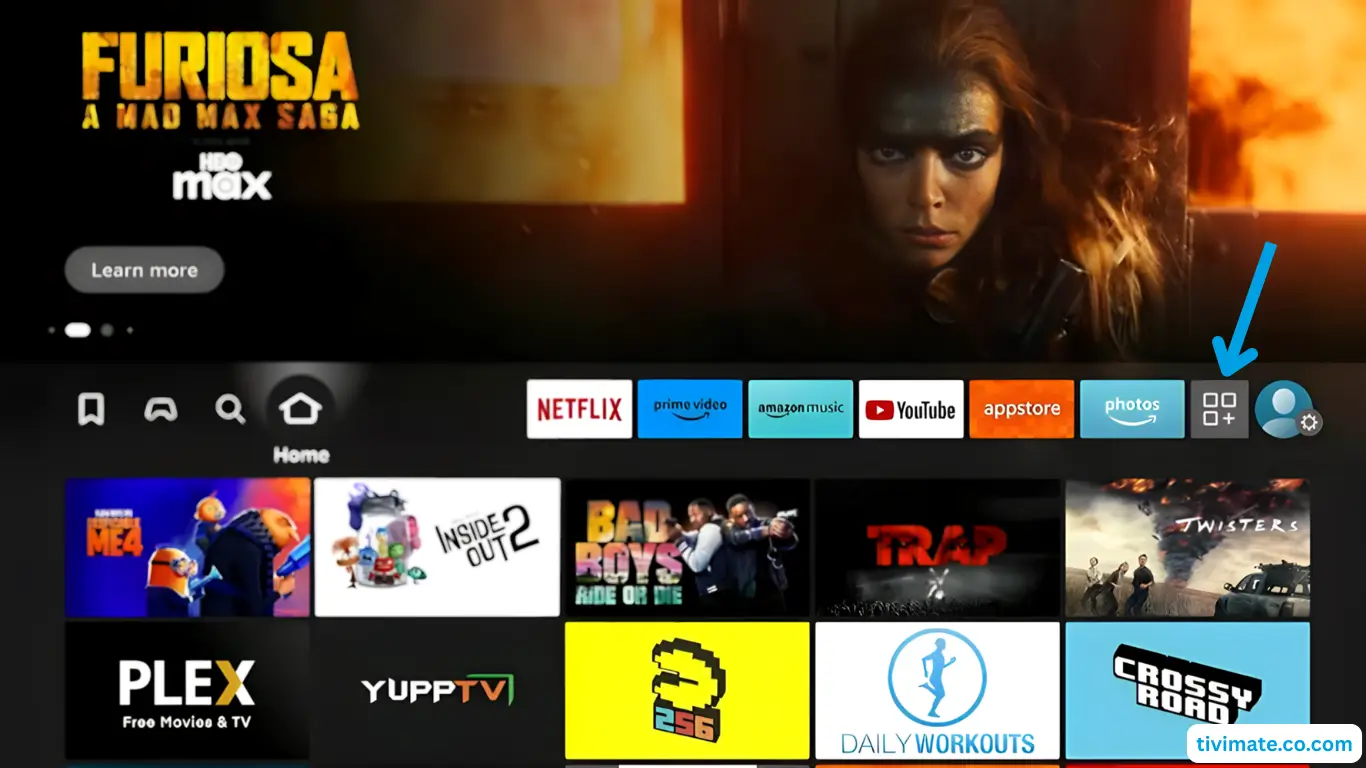
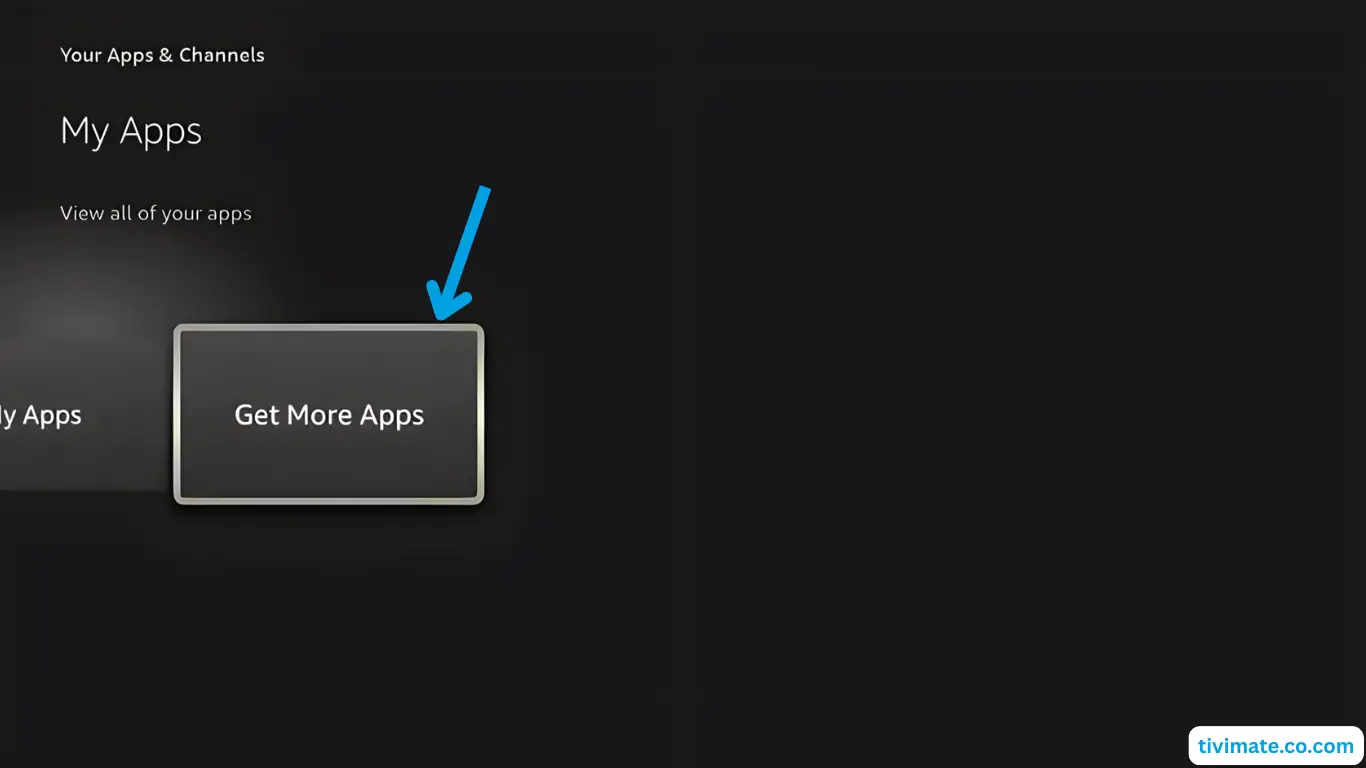
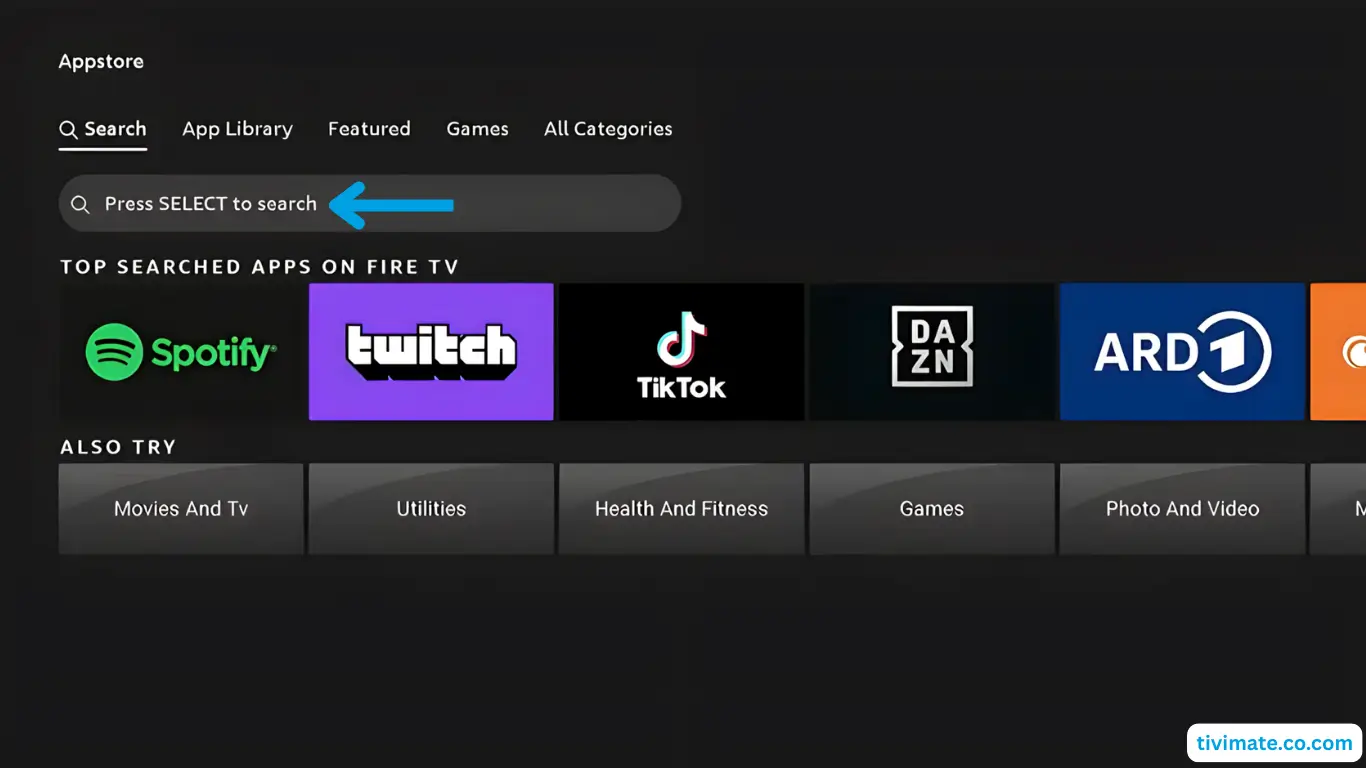
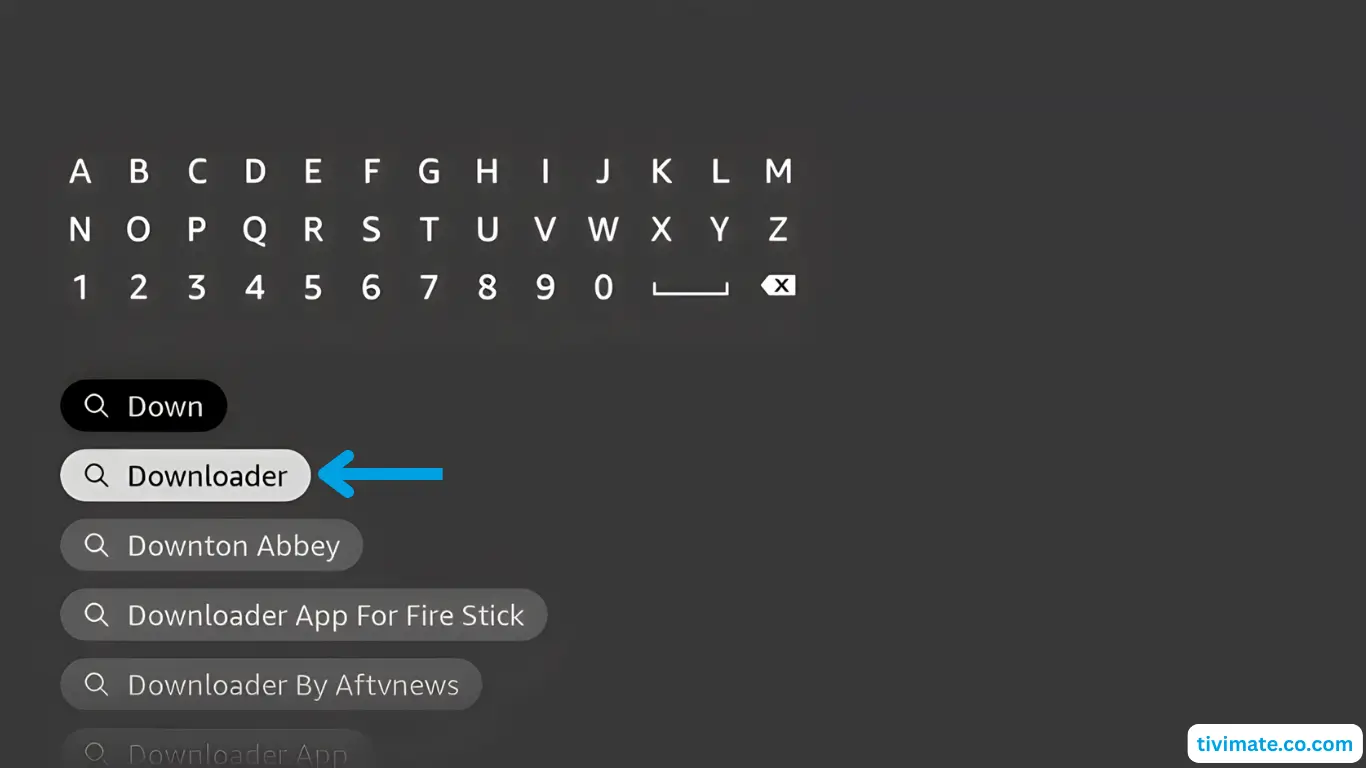
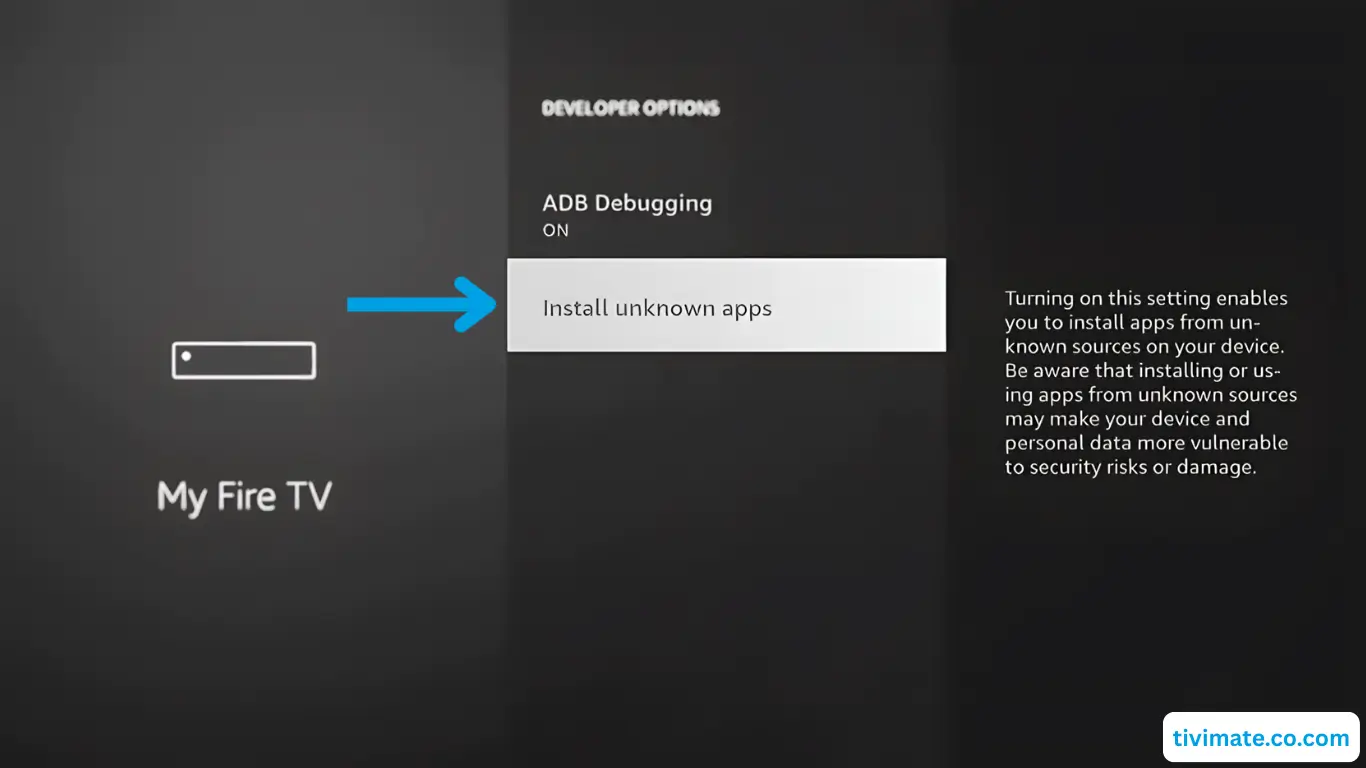
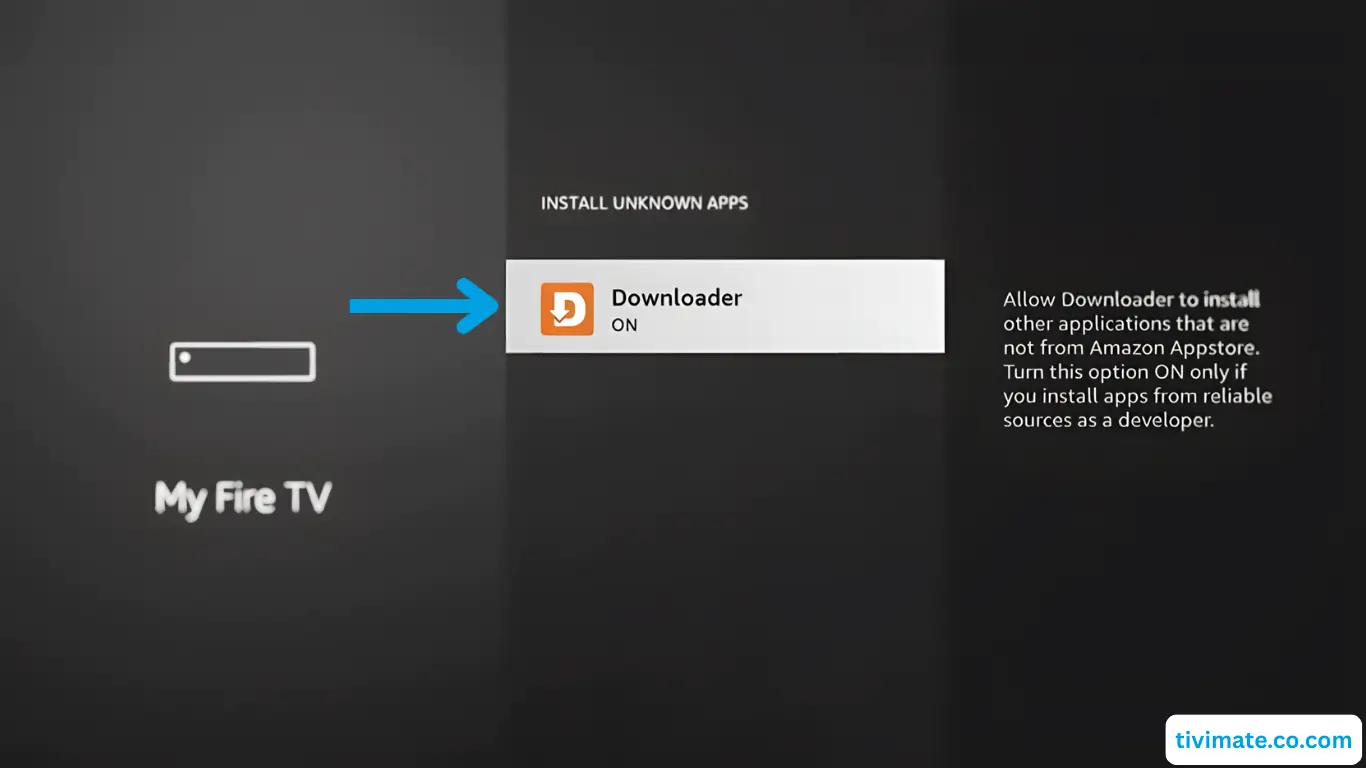

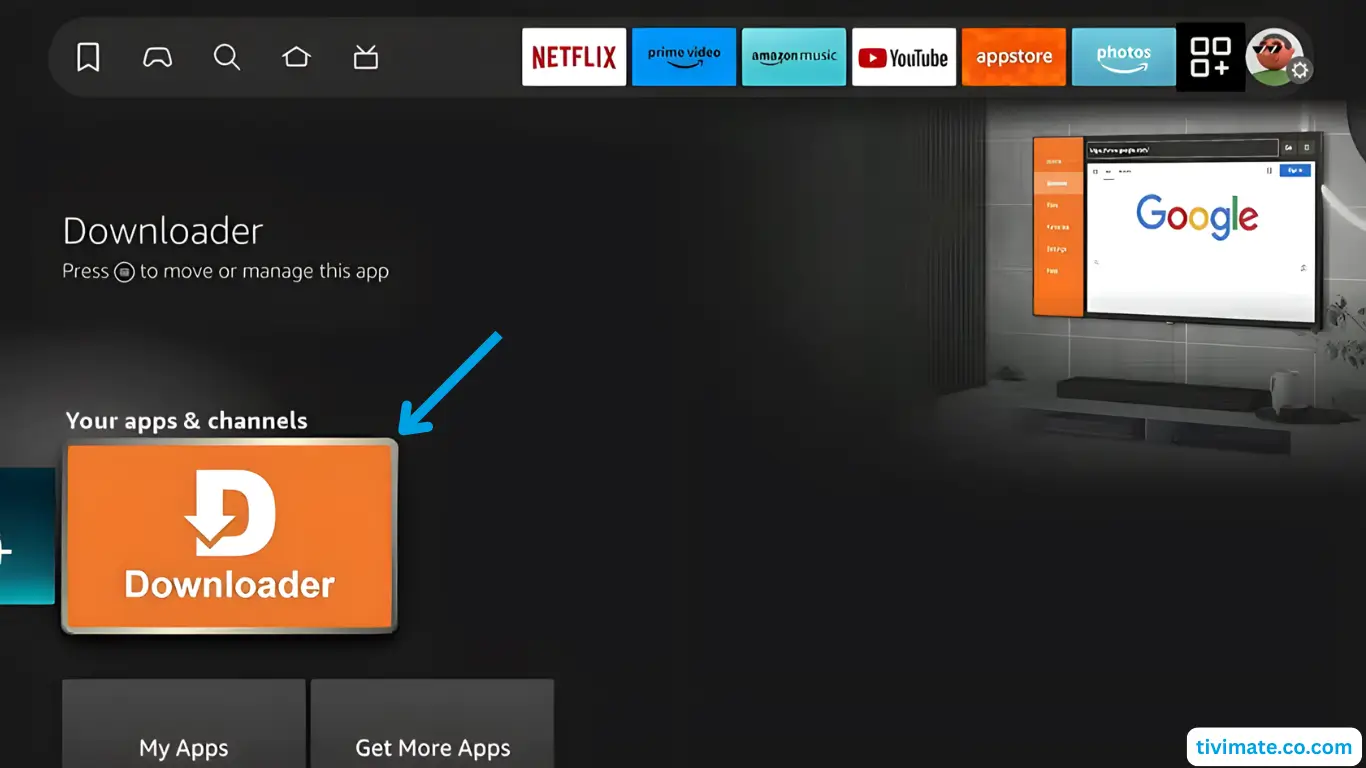
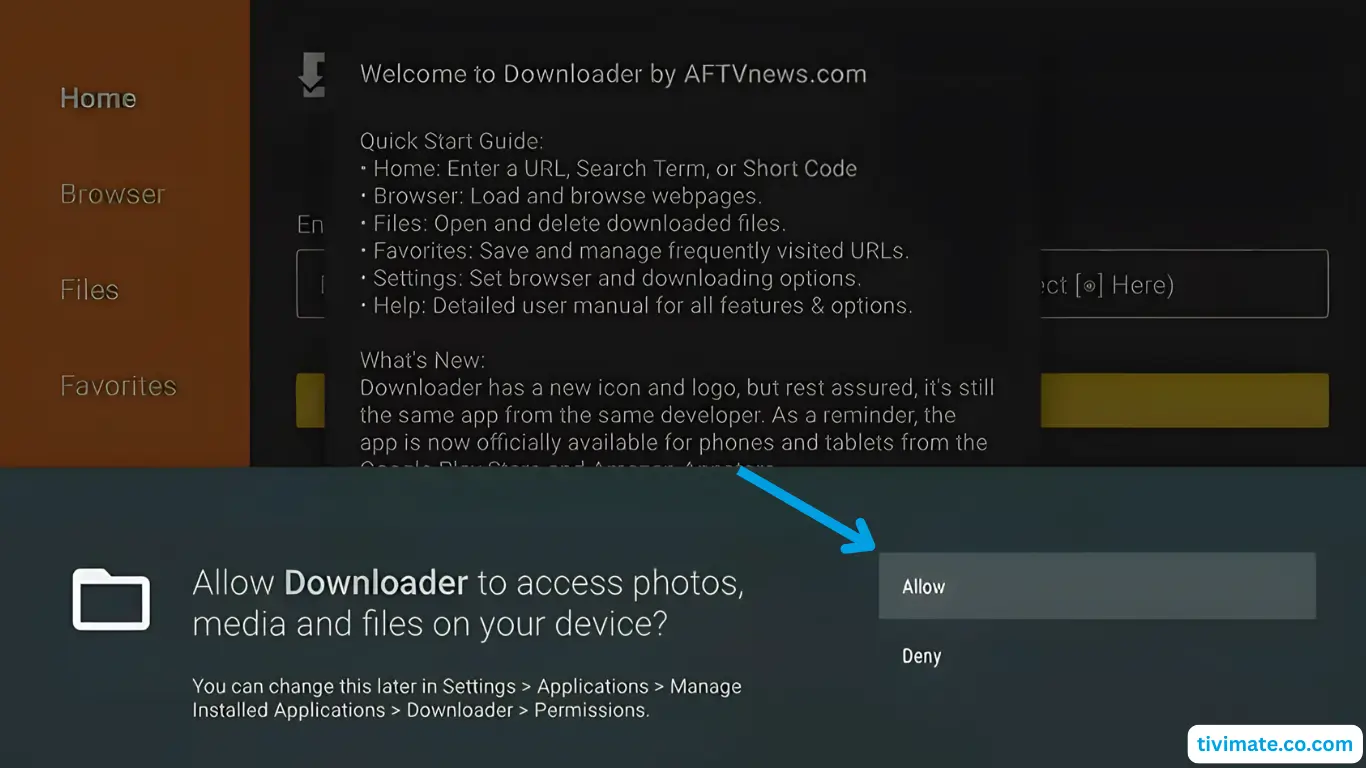


👽 Android TV Setup Guide – IPTVNorth
V12Mate
Perfect Player
TiviMate
Compatible devices: Sony, TCL, Hisense, Philips, Nvidia Shield, Chromecast with Google TV, Mi Box, and most Android TV boxes
Method 1: Using Downloader App (V12Mate)
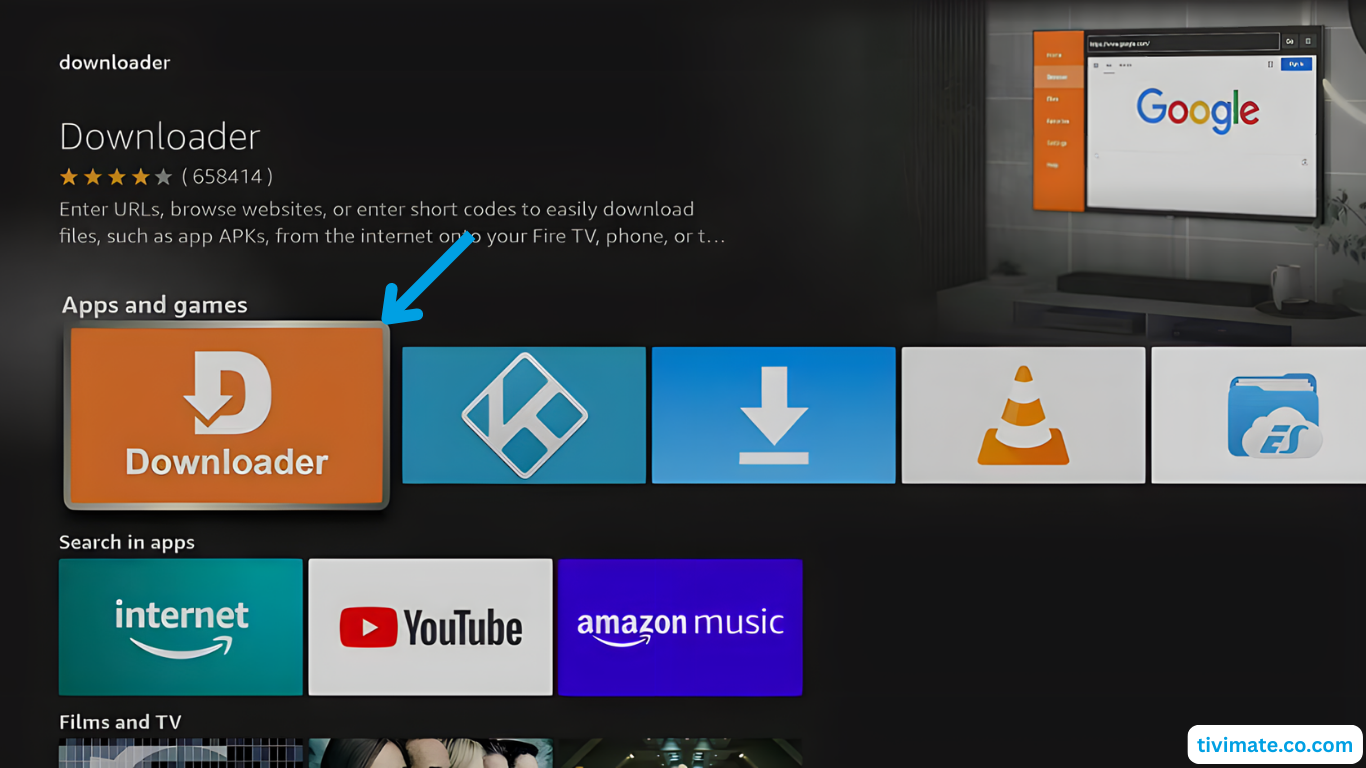
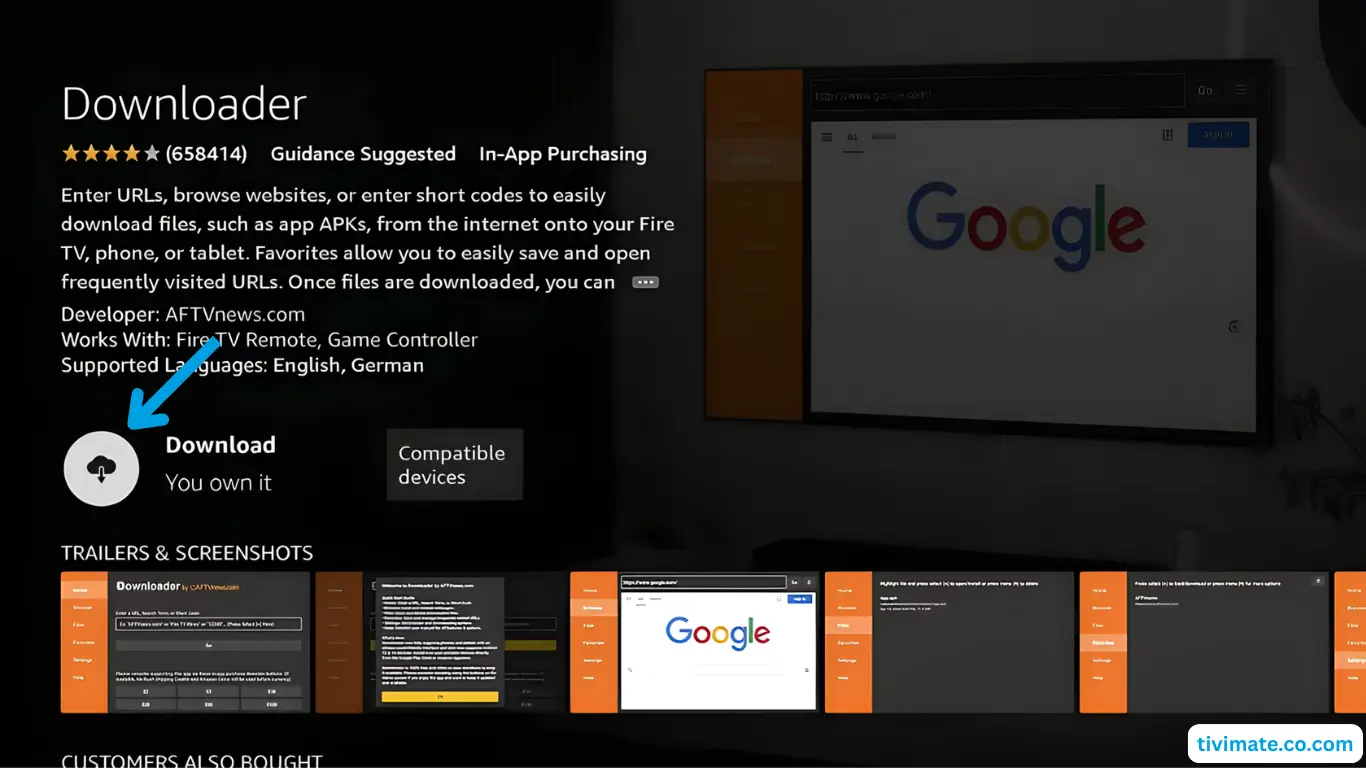
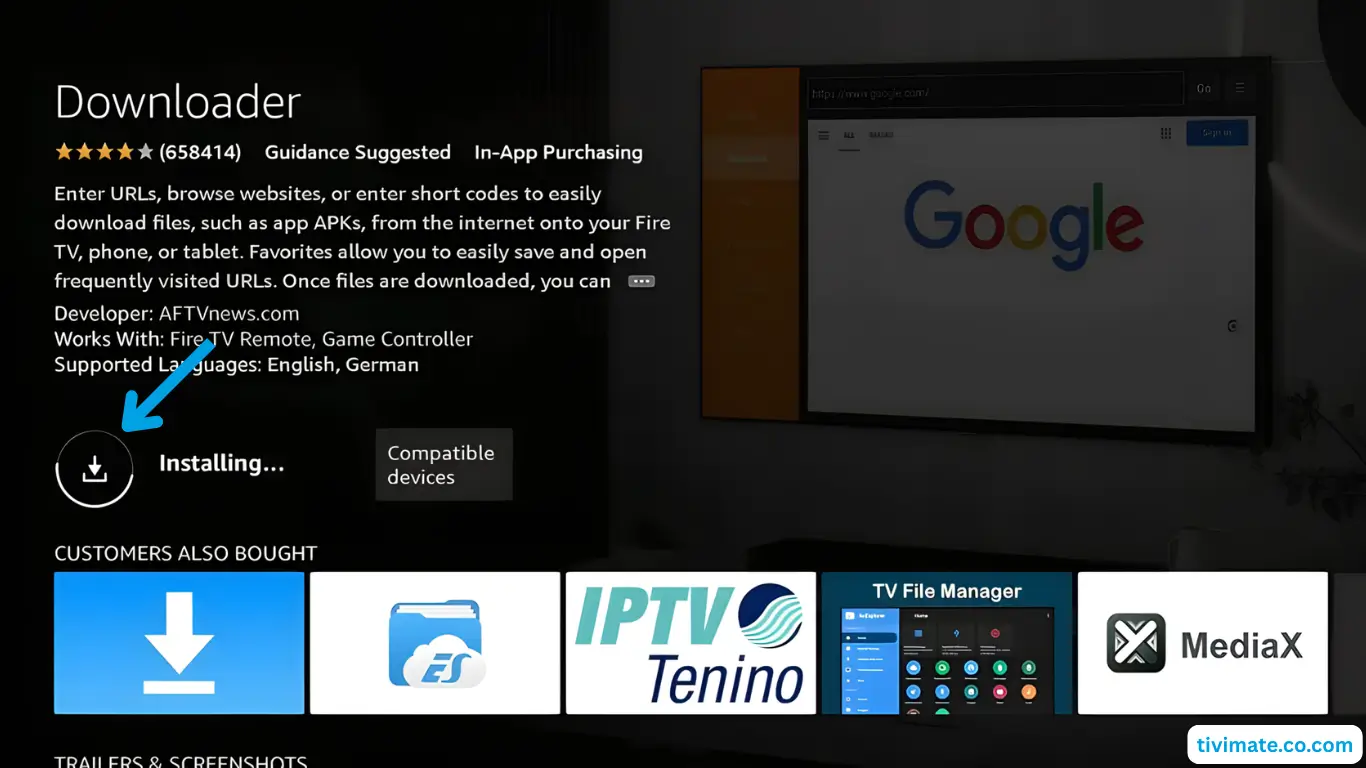
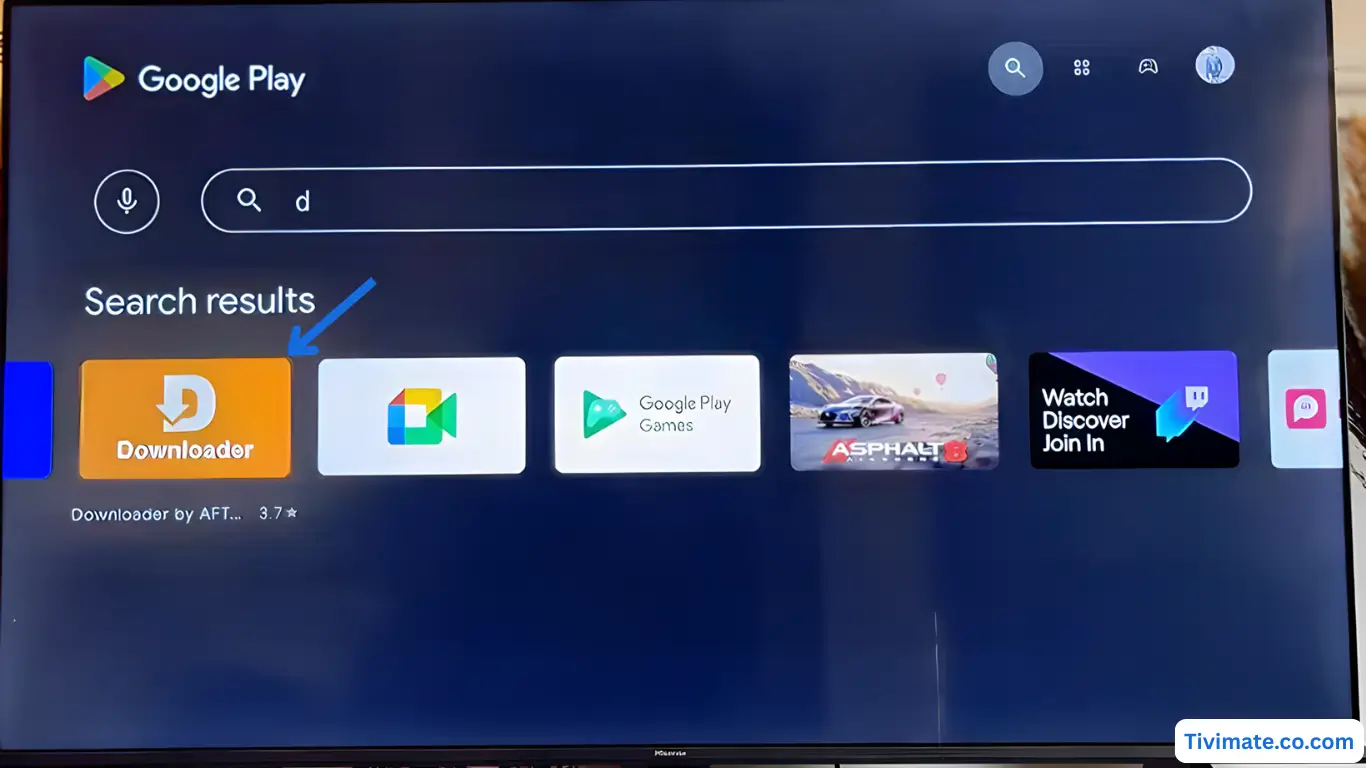
- Search for Downloader in the Play Store and tap Install
- Press Allow when prompted

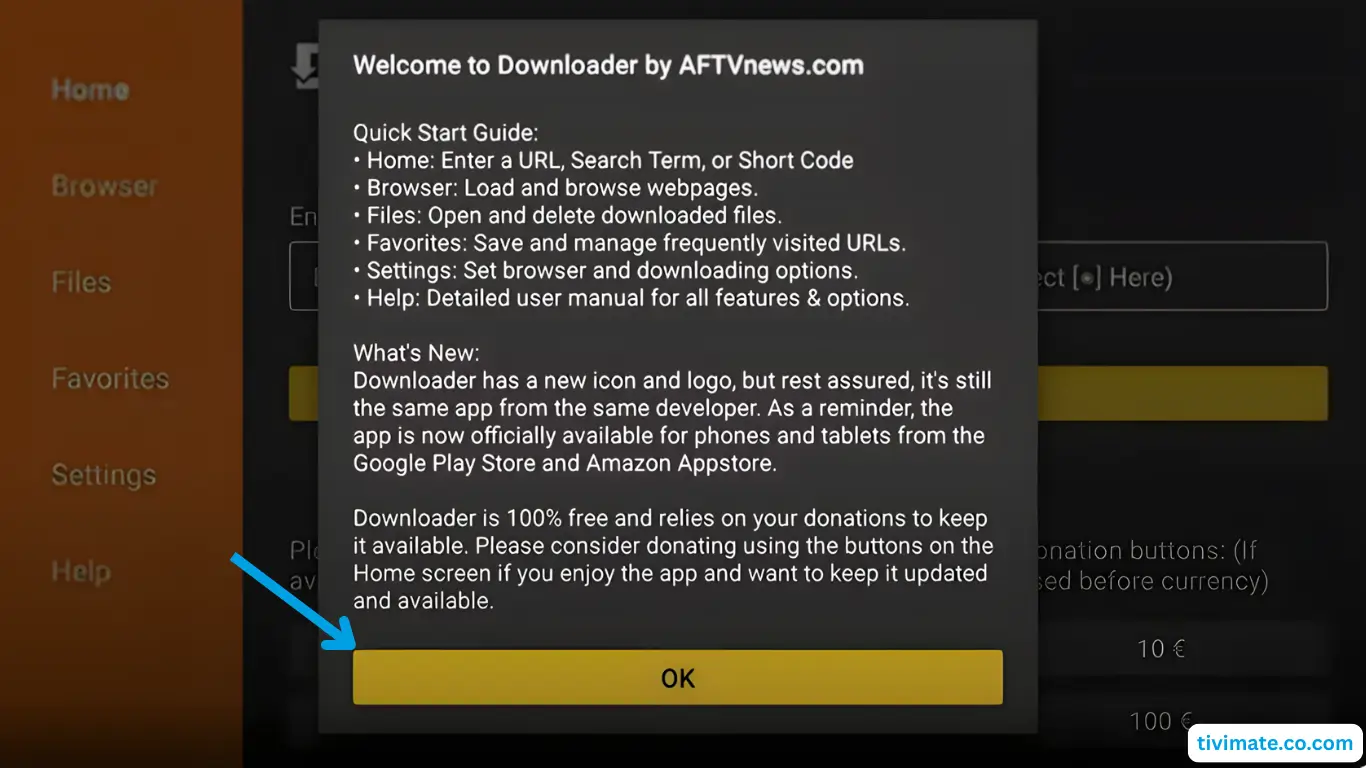
- Click OK to confirm

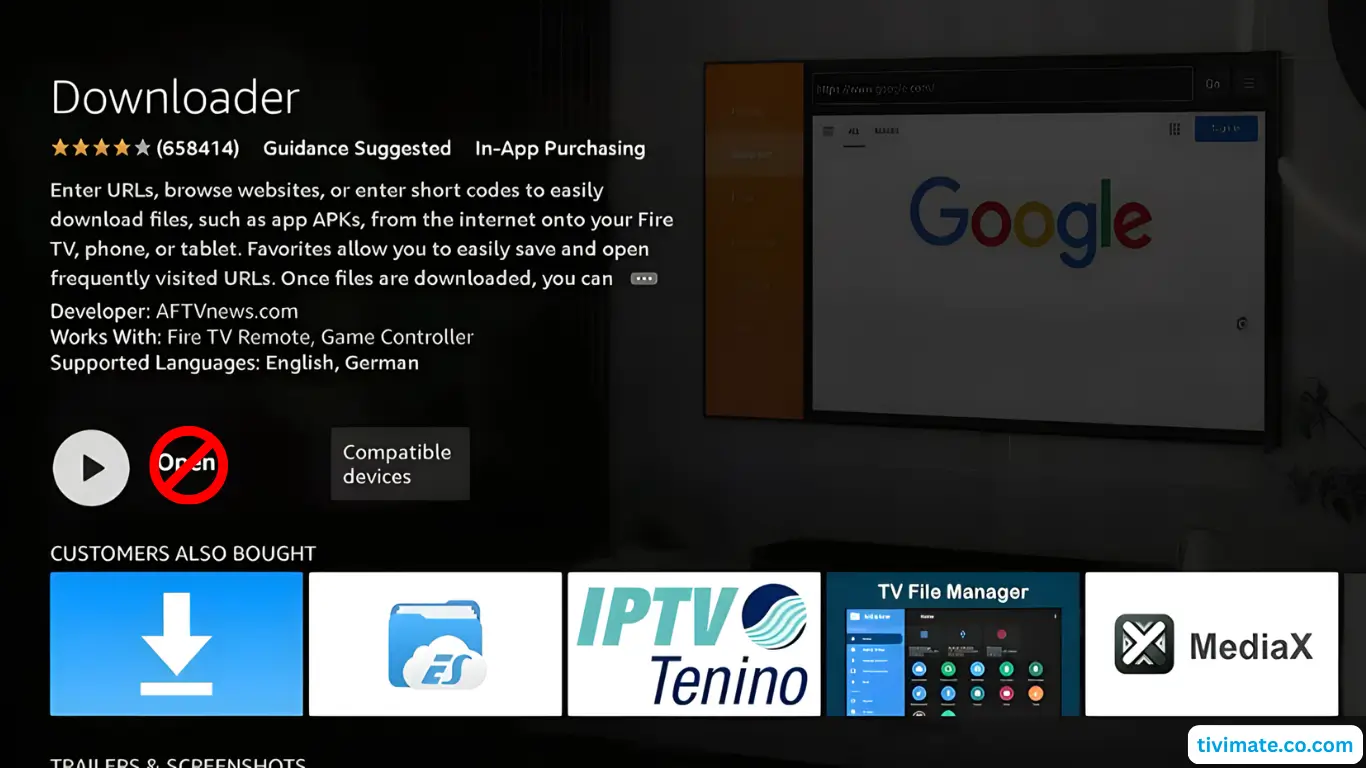
- Downloader is ready — now install V12Mate
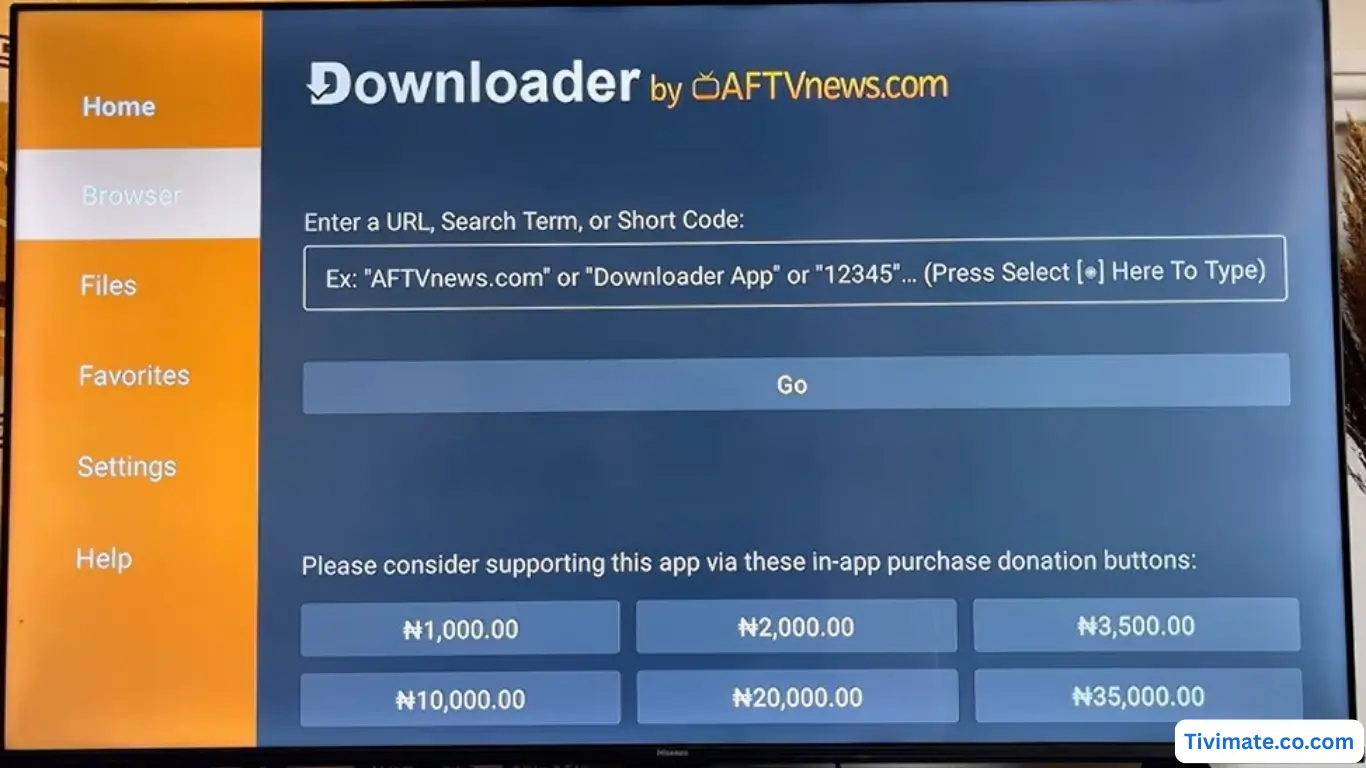
- Enter the Downloader code for V12Mate: 2494311 → press GO

- Accept Privacy Policy → Install
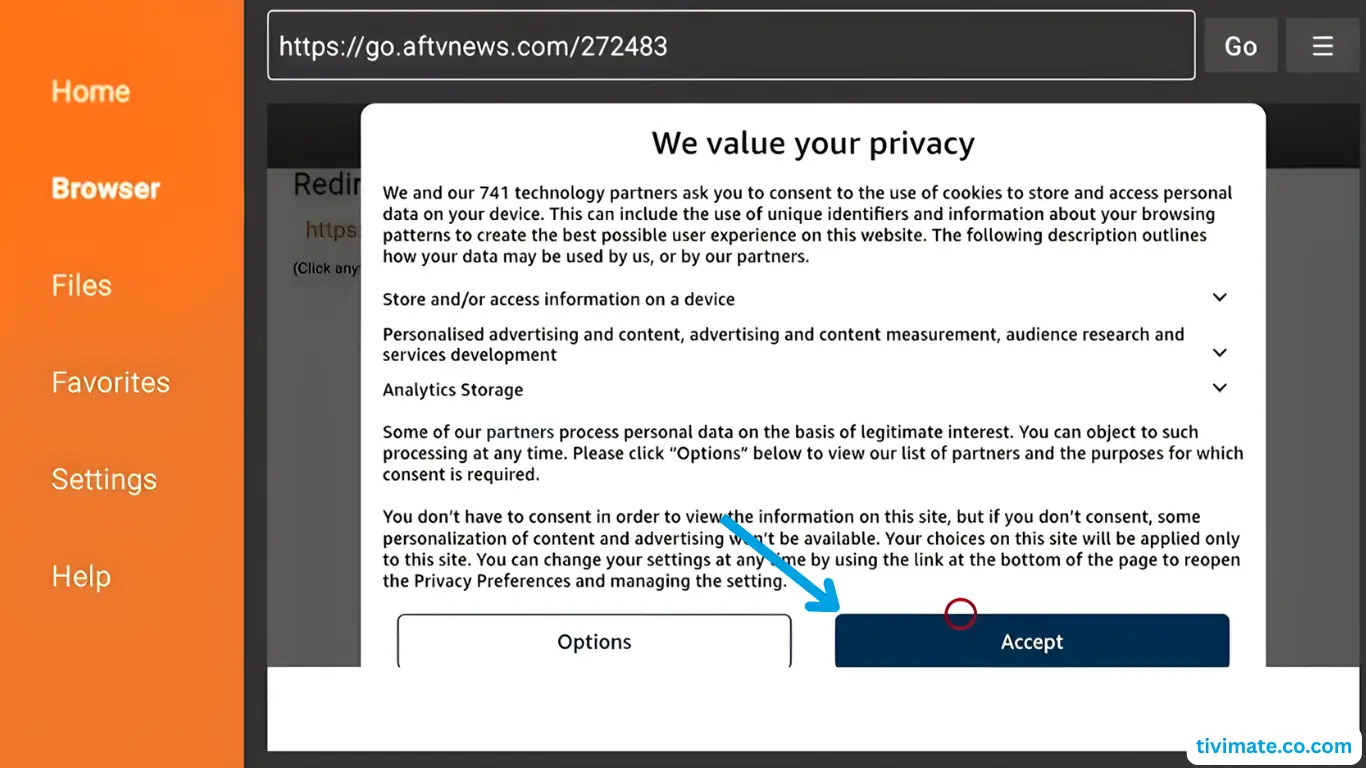

- Press Install → wait until installed

- When complete, press OPENVery Important: If you already have Tivimate installed, please uninstall it first

- Press Add playlist

- Press V12MATEIf you only see "Cancel", click this link 👉 CLICK HERE

- Enter your IPTVNorth Credentials — No server URL needed.

- Press Next, keep VOD and TV channels selected

- Wait for it to process (about 1 minute)

- Press Done. You're ready to watch!If No Channels Load: Go to Settings → Playlists → V12Mate → Xtream Codes Parameters and verify your IPTVNorth username and password.

The EPG loads in the background. View it in Settings → EPG
Note: Go to Settings → Security & Restrictions and toggle Allow unknown apps if installing from outside Play Store.
Method 2: Google Play Store (TiviMate – if V12Mate doesn't work)
- Open Google Play Store on your Android TVNote: VOD on TiviMate only works with their Premium. IPTVNorth subscriptions already include VOD built in.
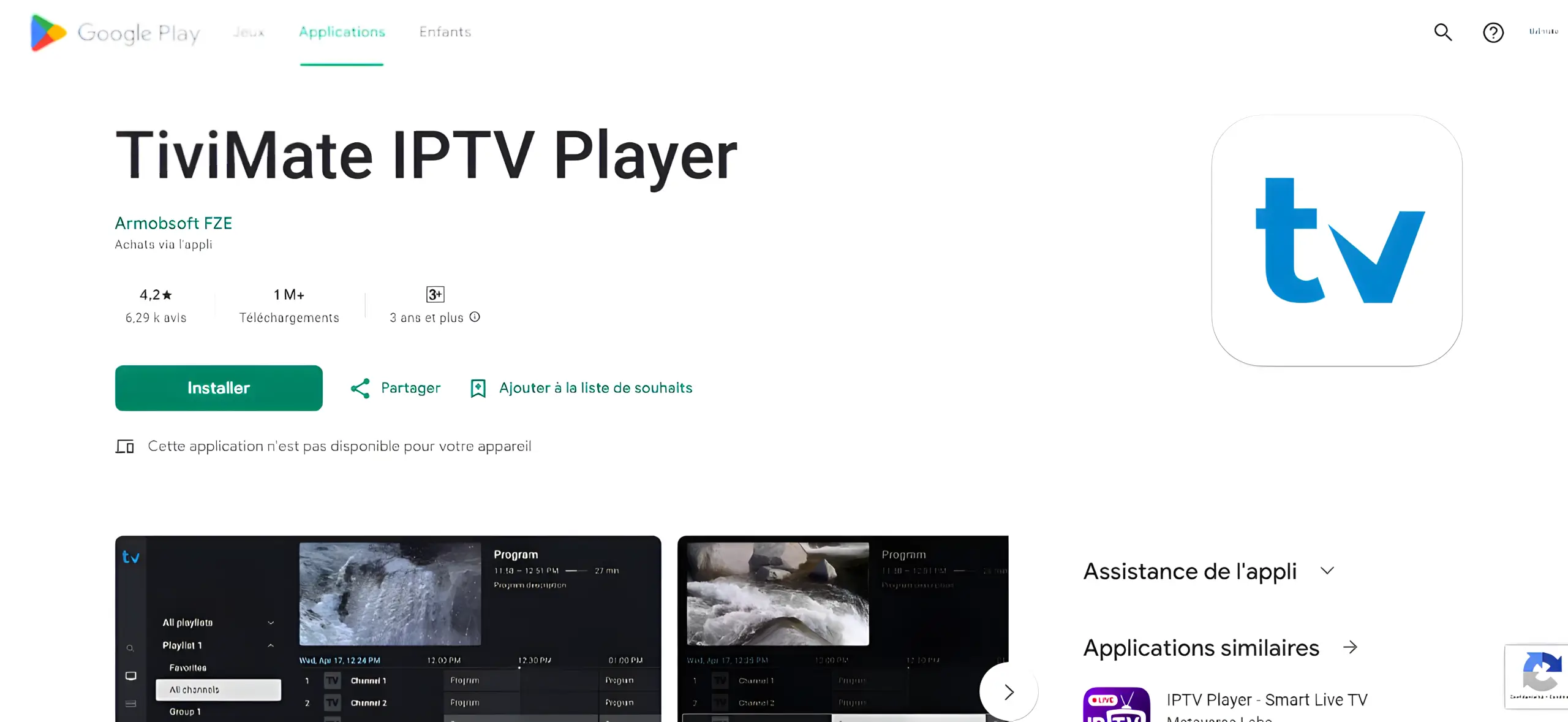
- Search for TiviMate IPTV Player and click Install
- Open TiviMate, select Add Playlist, choose Xtream Codes
- Enter your IPTVNorth credentials (Server URL, Username, Password)
Frequently Asked Questions
What is V12Mate and how does it work?▸
V12Mate is IPTVNorth's dedicated IPTV player for Android TV. It connects directly to our servers using your subscription credentials.
Is V12Mate compatible with my Android TV?▸
V12Mate works with most Android TV devices running Android 5.0 or higher. Check your system version in Settings → About.
Can I use V12Mate with any IPTV provider?▸
V12Mate is IPTVNorth's own dedicated player and only works with our service. It is free with your IPTVNorth subscription.
Is TiviMate owned by IPTVNorth?▸
No. TiviMate is a third-party player. IPTVNorth owns and supports V12Mate. TiviMate also requires a premium license to unlock all features.
🍎 iPhone & iPad Setup Guide – IPTVNorth
iMPlayer
Smarters Player Lite
Method 1: iMPlayer Setup (Recommended)
- Download iMPlayer - IPTV Player from App Store:
Download from App Store
- Open the app and click "Add a Playlist"
- Select playlist type "XC API"
- Fill in your IPTVNorth details:
• Playlist Name: Any name
• Portal URL: Server URL from your IPTVNorth welcome email
• Username & Password: From your welcome email - Click "Add Playlist", wait for content to download, and enjoy!
Method 2: Smarters Player Lite
- Open app and tap Add User, select Login with Xtream Codes API
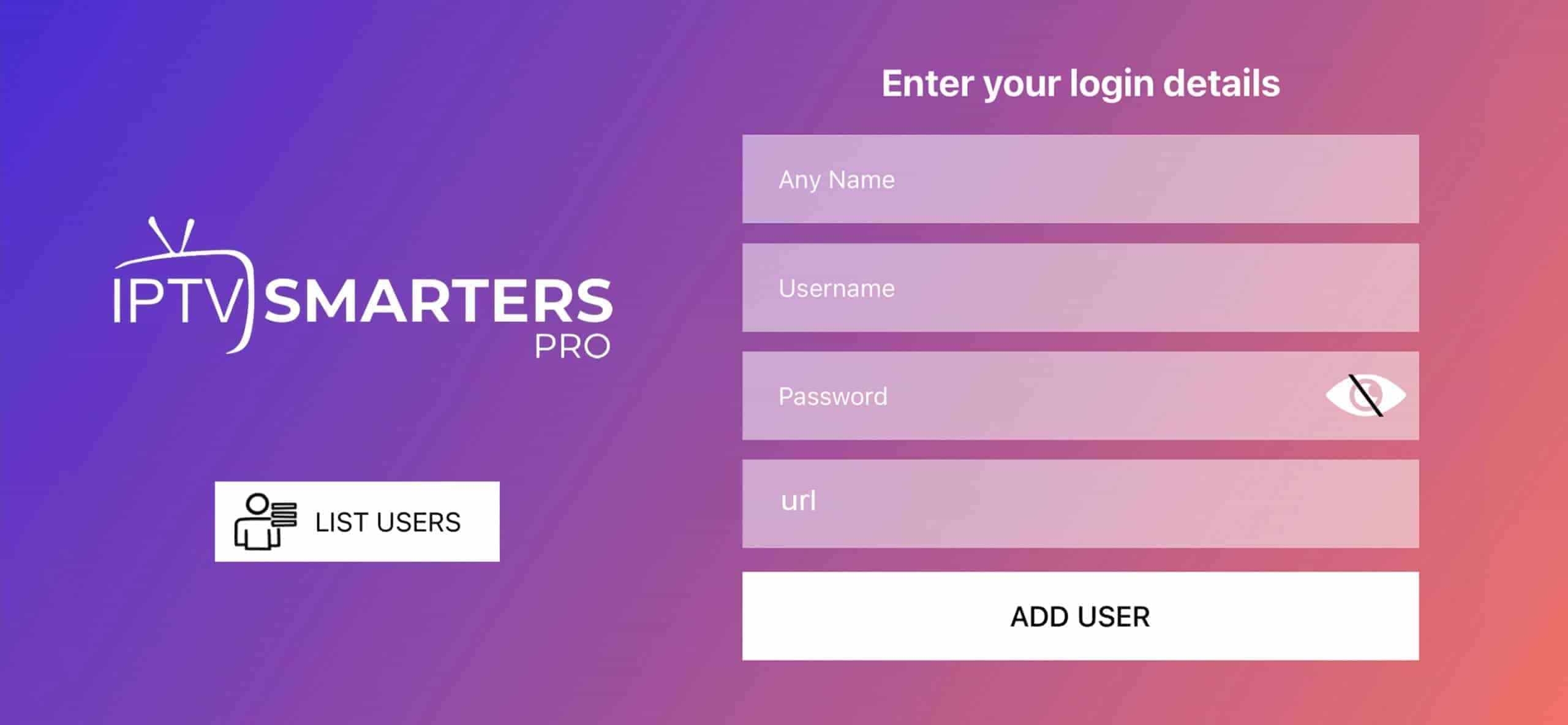
- Enter your IPTVNorth login details, then click "ADD USER"
- Wait a few seconds for the app to process
- Tap "Live TV" to start watching
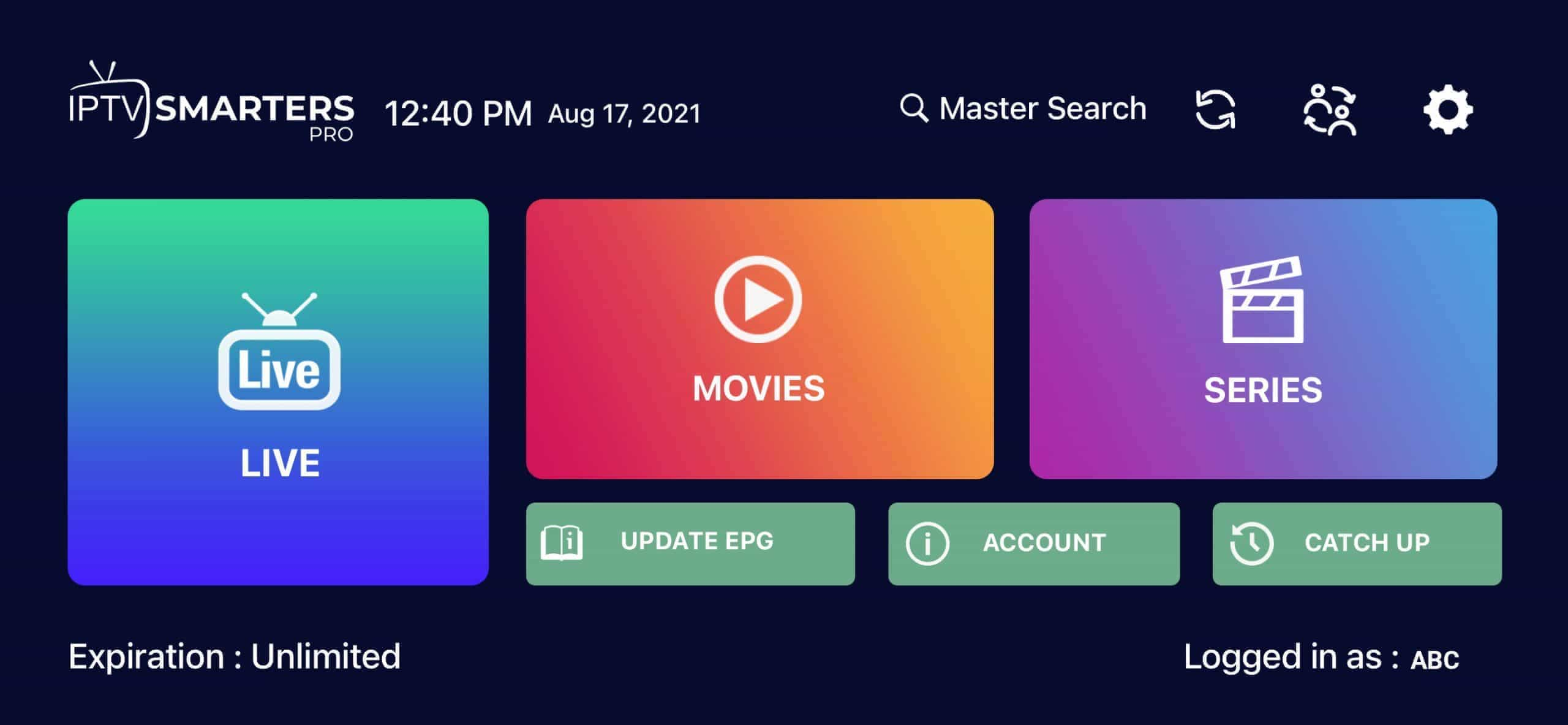
Tip: For best performance, use a stable WiFi connection. Cellular data may cause buffering.
Frequently Asked Questions
Which app is best for iOS?▸
iMPlayer is our recommended choice for its simplicity. Smarters Player Lite is also excellent for beginners. Both work with IPTVNorth.
Do I need to jailbreak my iPhone/iPad?▸
No, all recommended apps are available directly from the App Store. No jailbreak required.
Can I use these apps on Apple TV?▸
Yes! iMPlayer supports Apple TV. You can also use AirPlay to stream from your iPhone/iPad to Apple TV.
💻 Windows & Mac Setup Guide – IPTVNorth
IPTV Smarters Pro
MyIPTV Player
VLC Player
Method 1: IPTV Smarters Pro
- Click "Downloads" in the menu
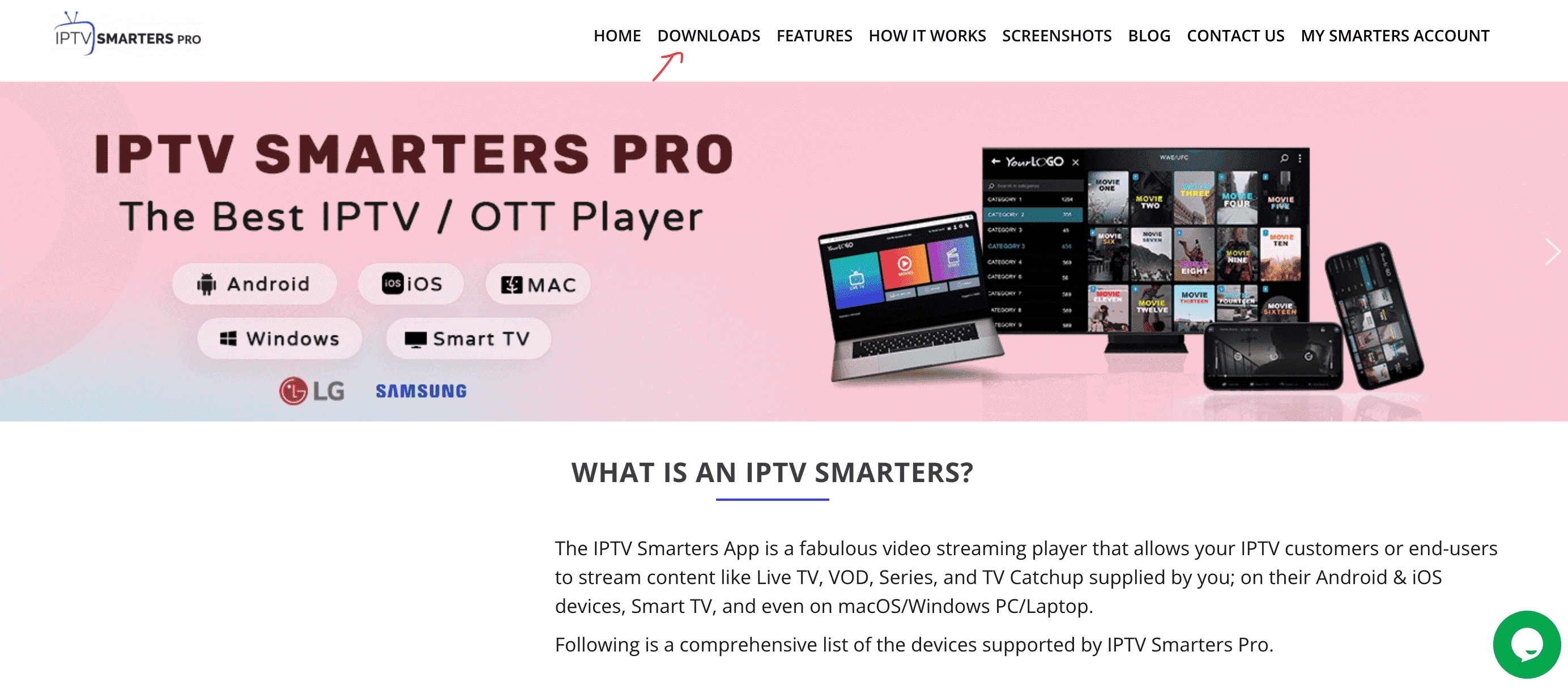
- Download the Windows or Mac version

- Run the installer, click "Yes" if Windows asks for permission
- Open the app, click Add New User → "Login with Xtream Codes API"
- Enter your IPTVNorth Username, Password, and Portal URL from your welcome email
- Done! You're ready to start streaming with IPTVNorth.
Method 2: MyIPTV Player (Windows 10/11)
- Go to Settings → "Add new playlist and EPG source"
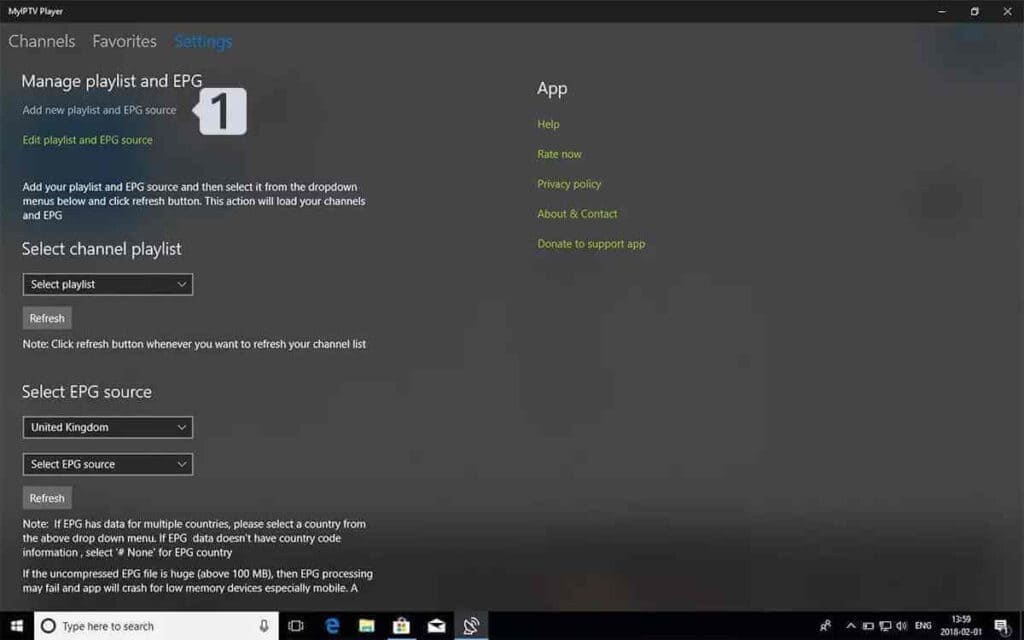
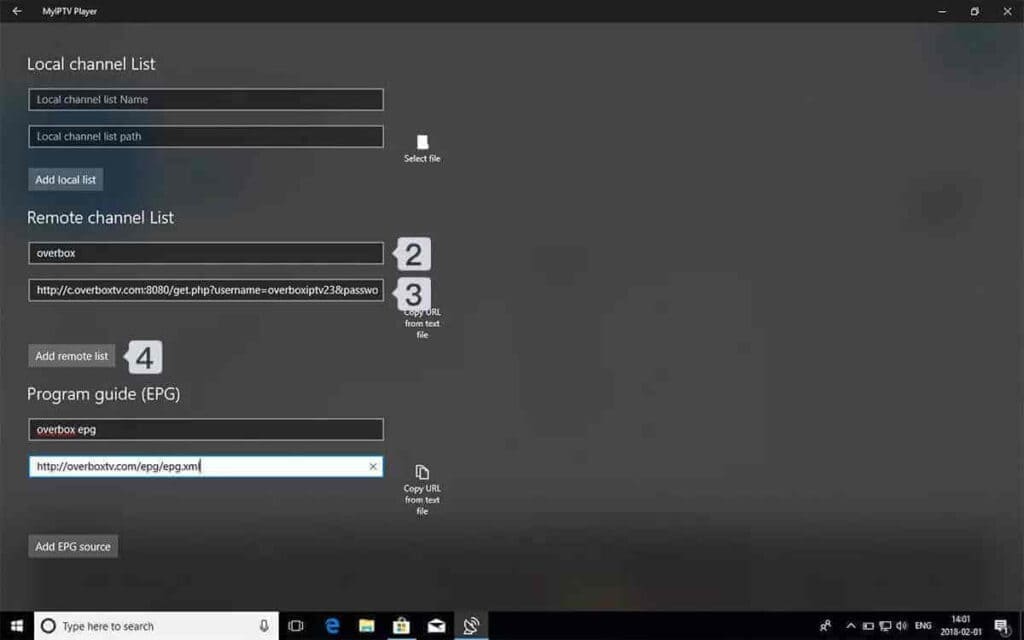
- Paste your IPTVNorth M3U URL and click Add remote list
- Choose your playlist from Select Channel Playlist
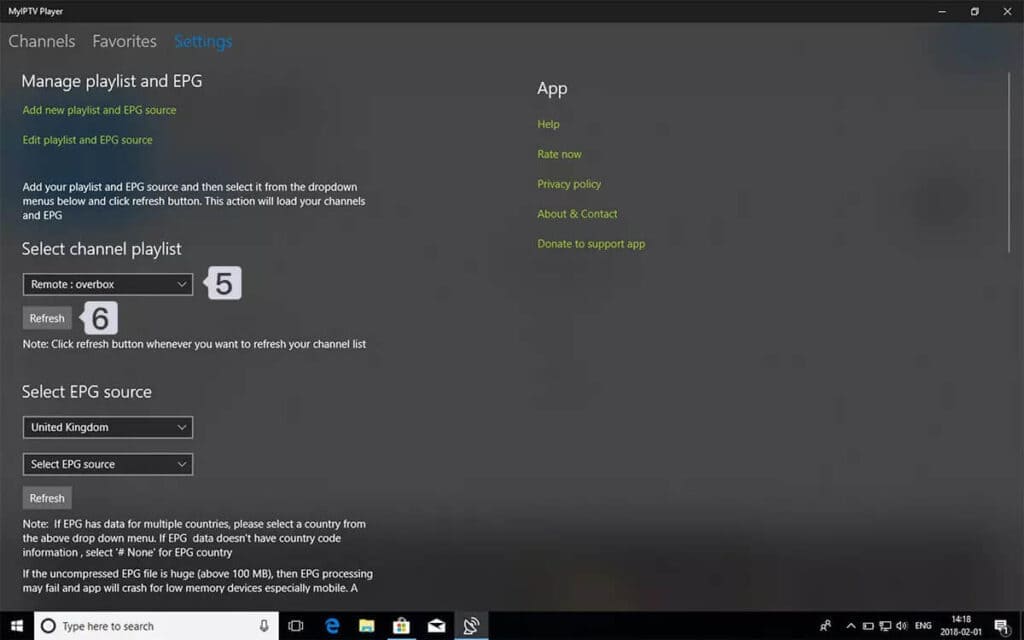
- Go to Channels and start watching IPTVNorth!

Tip: Use a wired ethernet connection for best performance on PC/Mac.
Frequently Asked Questions
Which app works best on Windows/Mac?▸
IPTV Smarters Pro works on both Windows and Mac. MyIPTV Player is great for Windows 10/11 users.
Can I use VLC Player for IPTVNorth?▸
Yes, VLC can play M3U playlists. Go to Media → Open Network Stream and paste your M3U URL. However dedicated IPTV apps offer better features.
📱 Android Phone & Tablet – IPTVNorth
iMPlayer Mobile
TiviMate Mobile
Requirements: Android 5.0 or higher, stable WiFi or 4G/5G connection
Method 1: iMPlayer (Recommended)
- Download iMPlayer from Google Play:
Download from Google Play Store
- Open the app and click "Add a Playlist"
- Select playlist type "XC API"
- Fill in your IPTVNorth details:
• Portal URL: From your welcome email
• Username & Password: From your welcome email - Click "Add Playlist" and enjoy streaming!
Method 2: TiviMate Mobile
- Search TiviMate IPTV Player in Google PlayNote: VOD on TiviMate requires Premium. IPTVNorth subscriptions already include VOD.
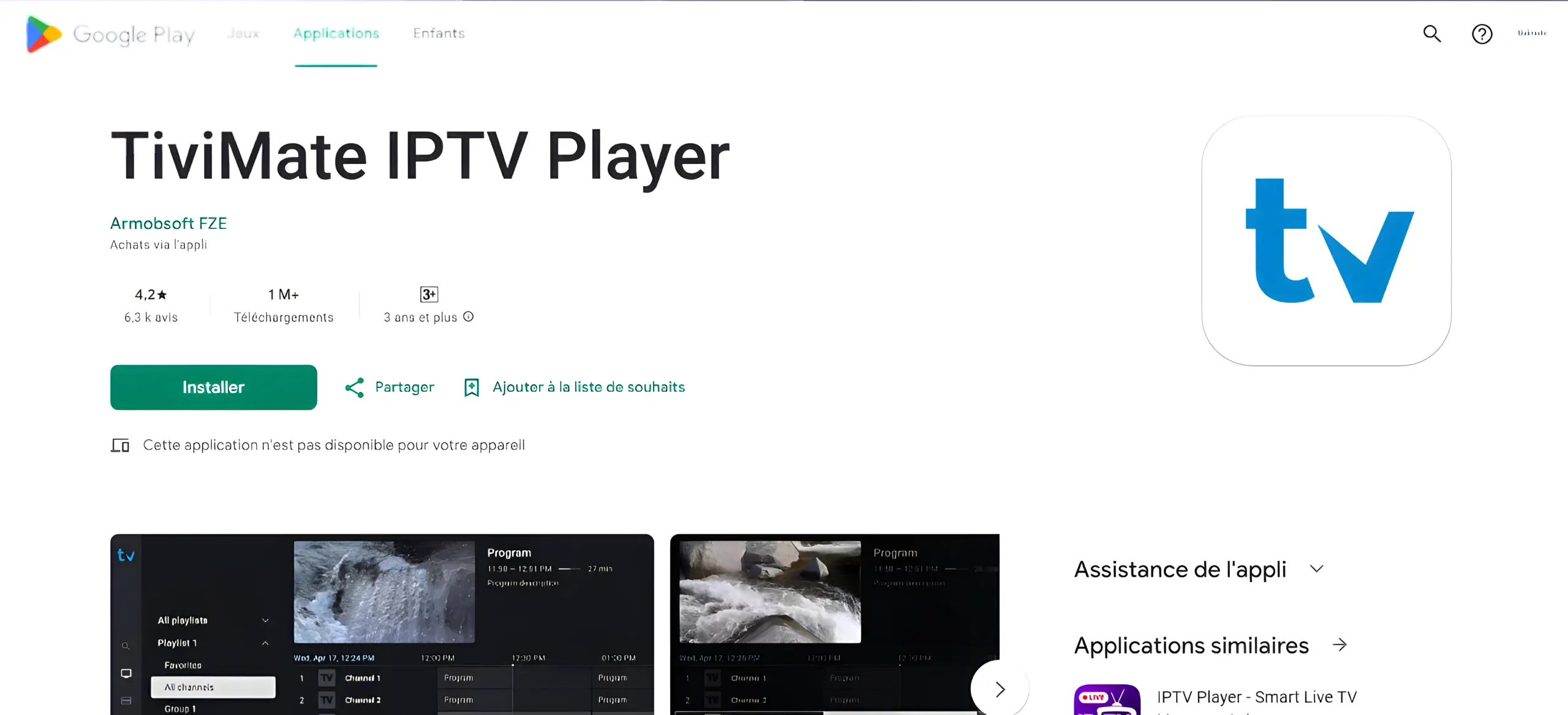
- Tap Install
- Open TiviMate → Add Playlist → Xtream Codes
- Enter your IPTVNorth Server URL, Username, and Password → tap Next
- Wait for channels to load and start watching!
Data tip: ~1GB/hour standard, ~3GB/hour HD. Use WiFi when possible.
Frequently Asked Questions
Does TiviMate include IPTVNorth channels?▸
No, TiviMate is just the player. You need your IPTVNorth subscription credentials to add the service.
Can I cast IPTVNorth to my TV from my phone?▸
Yes! Most IPTV apps support Chromecast. Look for the cast icon in the player, or use screen mirroring on compatible TVs.
🟣 Roku Device Setup Guide – IPTVNorth
Hot Player
Compatible: All Roku devices including Roku TV, Ultra, Streaming Stick, and Express
Step 1: Install Hot Player
- Open the Roku Channel Store
- Search "Hot IPTV" or "Hot Player"

- Click "Add Channel" to install
Step 2: Note Your MAC Address
- Open Hot Player on your Roku
- Note the MAC Address shown on screen

Step 3: Configure Your IPTVNorth Playlist
- On your phone/computer, visit https://hotplayer.app
- Click "Upload List"

- Enter your Roku MAC Address → click "Next"

- Change Source to "Xtream Code"

- Enter your IPTVNorth details:
• Host: Your server address
• Username & Password: From your welcome email
Then click "Save" - Return to your Roku and refresh Hot Player. You're ready!
Tip: Hot Player costs $9 CAD/year or $21 CAD lifetime. Channels come from your IPTVNorth subscription.
Frequently Asked Questions
Where do I find the MAC Address on Roku?▸
The MAC Address is displayed in the Hot Player app under the Account section when you first open it.
Why are my IPTVNorth channels not loading?▸
Check your internet connection, verify your IPTVNorth credentials, and ensure your subscription is active. Restart the Hot Player app and try again.
📺 Smart TV Setup Guide – IPTVNorth
Hot Player
Compatible: LG WebOS, Samsung Tizen, Vizio, Hisense, and other major brands
Important: If your Smart TV has the Google Play Store, follow the Android TV guide instead.
Step 1: Install Hot Player
- Open your Smart TV App Store (LG Content Store, Samsung Apps, etc.)
- Search "Hot IPTV" or "Hot Player"
- Click "Install" or "Download"
Step 2: Note Your MAC Address
- Open Hot Player on your Smart TV
- Write down the MAC Address shown on screen
Step 3: Configure Your IPTVNorth Playlist
- On your phone/computer visit https://hotplayer.app
- Click "Upload List"
- Enter your Smart TV MAC Address → "Next"
- Change Source to "Xtream Code"
- Enter your IPTVNorth credentials and click "Save"
- Restart Hot Player on your Smart TV. You're ready to watch!
Frequently Asked Questions
What if Hot Player isn't in my TV's App Store?▸
Try changing your Smart TV account region, or use an alternative like Smart IPTV, GSE Smart IPTV, or IBO Player available in your TV's store.
Why are my channels not loading?▸
Verify your IPTVNorth credentials, check your internet connection, and ensure your subscription is active. Restart the app and try again.
📡 BuzzTV Setup Guide – IPTVNorth
XC API Login
Compatible: BuzzTV XPL 3000, XRS 4000, XRS 4500, E2000, and all BuzzTV Android boxes
XC API Login Setup
- From your BuzzTV home screen, navigate to Server Settings

- Select XC API Login → Add XC API Login

- Enter your IPTVNorth details:
• Portal Name: Any name
• Portal URL: Your server URL
• Username & Password: From your welcome email
- Press "Connect" or "Save"
- Return to home and select Live TV to watch!
Frequently Asked Questions
Which method should I use for IPTVNorth?▸
Use XC API Login with your IPTVNorth username and password. This is the recommended method.
Why won't my channels load?▸
Verify your IPTVNorth credentials, check your internet, and ensure your subscription is active. Try restarting the BuzzTV app.
📟 Formuler/Dreamlink Setup – IPTVNorth
MyTVOnline 2 & 3
DOL2 App
Compatible: Formuler Z8, Z10, Z11, GTV, and all Formuler Android TV boxes
Formuler Z: MyTVOnline 2 & 3
- Open MyTVOnline 2 or 3 from your Formuler home screen
- Navigate to Menu → Connections → Add Portal
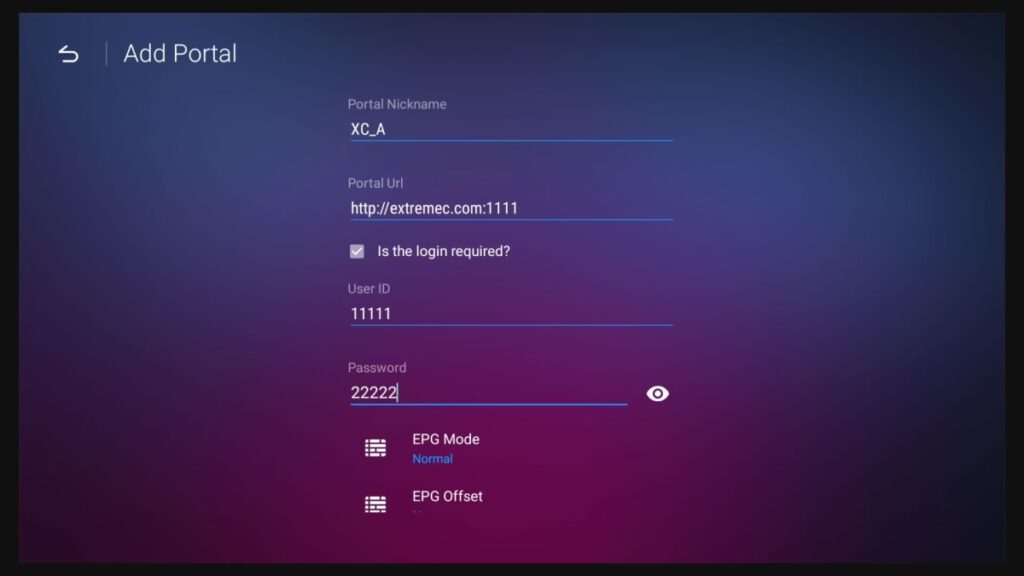
- Fill in your IPTVNorth details:
• Portal URL: Your server URL
• Login Required: Enable
• Username & Password: From your welcome email - Press "Connect" and your channels will load!
Dreamlink: DOL2 App
- Open DOL2 App from your Dreamlink home

- Go to Menu → Portals → Edit Portal
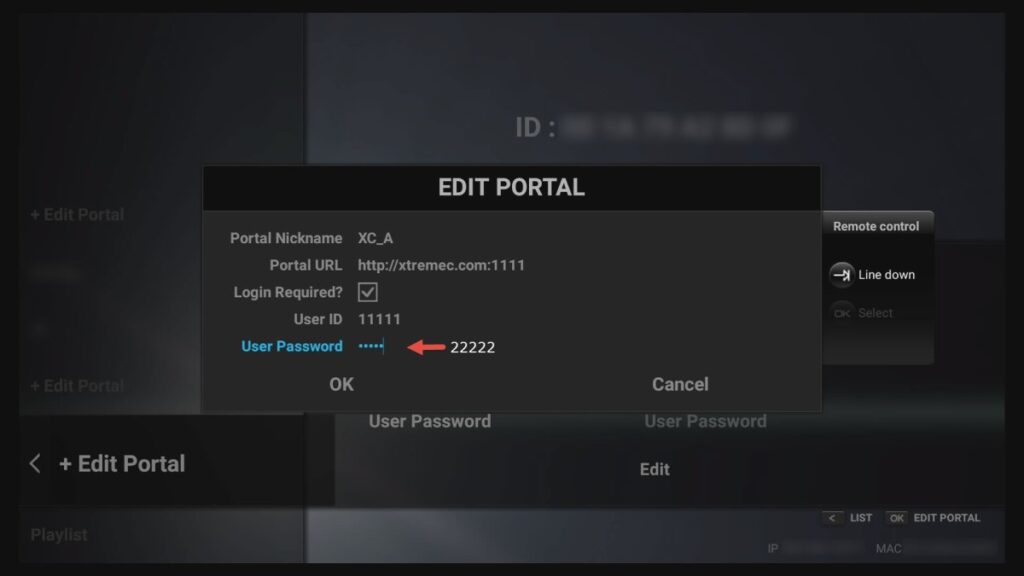
- Enter your IPTVNorth Portal URL, Username, and Password. Enable Login Required.
- Save and restart the app to connect
Important: Unlike MAG boxes, Formuler and Dreamlink don't require MAC address registration. Only username and password are needed.
Frequently Asked Questions
Do I need a MAC address for Formuler?▸
No. Formuler boxes use Xtream Codes login — only your IPTVNorth username and password are needed.
Why won't my channels load?▸
Ensure "Login Required" is enabled, check your credentials, verify your internet, and restart MyTVOnline.