
Why Canadians Are Ditching Cable for IPTV in 2026
Thousands of Canadians are cutting the cord every month — and for good reason. The average cable bill from Bell, Rogers, or Telus now runs well over $100 CAD per month, packed with channels nobody watches. IPTV offers a smarter alternative: thousands of live channels, on-demand movies, and sports — delivered over your internet connection at a fraction of the cost.
The Amazon Firestick is by far the most popular device for streaming IPTV in Canada. It's affordable (starting at $39.99 CAD), portable, and compatible with every major IPTV app. Whether you're new to streaming or switching providers, this guide walks you through the entire setup — from enabling developer options to watching your first live channel — in 15 minutes or less.
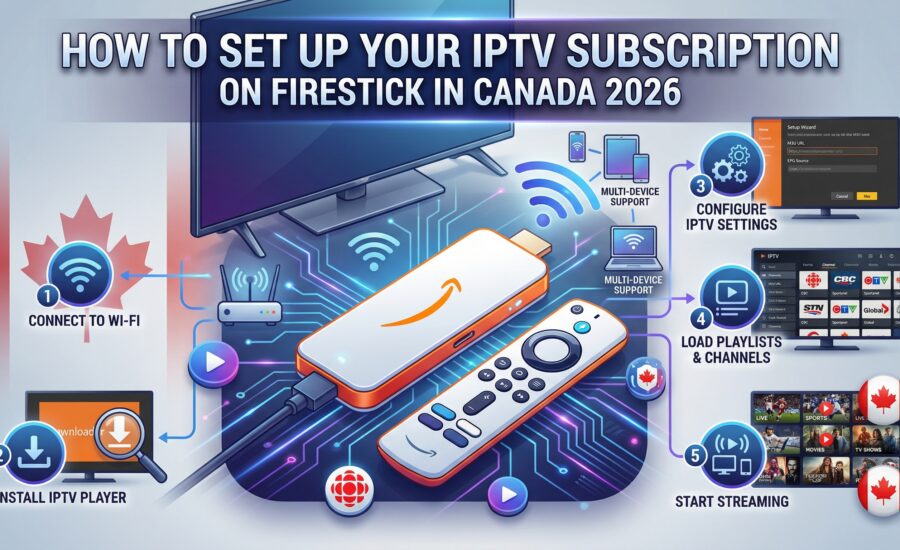
💡 Quick Summary: You'll install the Downloader app → enable Unknown Sources → sideload your IPTV player (V12Mate or IPTV Smarters Pro) → enter your IPTVNorth subscription credentials → start streaming.
What You Need Before You Start
Before diving into the installation steps, make sure you have the following ready. Most Canadian households will already have everything on this list.
| Requirement | Details |
|---|---|
| Amazon Firestick | Any model — Fire Stick HD, 4K, or 4K Max (recommended) |
| Internet Speed | Minimum 10 Mbps for HD; 25 Mbps+ for 4K streaming |
| Amazon Account | Required to download the Downloader app from the Amazon App Store |
| IPTV Subscription | Your IPTVNorth login credentials (username, password, server URL) |
| Wi-Fi or Ethernet | 5GHz Wi-Fi strongly recommended; Ethernet adapter for best stability |
Which Firestick should you buy? For the best IPTV Canada experience, go with the Fire Stick 4K Max (~$79.99 CAD). It handles true 4K HDR streams without buffering and has a faster processor than the standard model. That said, even the base Fire Stick HD works perfectly for 1080p viewing.
Why the Amazon Firestick Is the Best Device for IPTV Canada
Before getting into the steps, it's worth understanding why the Firestick has become the go-to device for IPTV subscriptions across Canada.
Affordable and Widely Available
Firesticks are sold at Walmart, Best Buy, Amazon Canada, and Canadian Tire for $39–$79 CAD. Unlike cable boxes that charge monthly rental fees, you own the Firestick outright. Pair it with a quality IPTV Canada subscription and you can save $1,000+ per year compared to traditional cable.
Portable — Watch Anywhere
The Firestick plugs into any TV's HDMI port. Take it to a cottage, hotel room, or across the country — your full channel lineup travels with you. Perfect for snowbirds heading south for the winter.
Compatible with All Major IPTV Apps
The Firestick supports every leading IPTV player: V12Mate, IPTV Smarters Pro, TiviMate, GSE Smart IPTV, Perfect Player, and more. This means you're never locked into a single app and can switch players without losing your subscription.
Simple for Non-Technical Users
Amazon's Fire OS interface is clean and beginner-friendly. The remote control is straightforward, and the setup steps in this guide require no technical knowledge — just follow along one step at a time.
Step-by-Step: How to Install IPTV on Firestick in Canada (2026)
The full installation is divided into three parts. Total time: 10–15 minutes.
Part 1 — Enable Developer Options & Unknown Sources
By default, the Firestick only allows apps from the Amazon App Store. To install an IPTV player, you first need to unlock the ability to sideload external apps. This is safe, legal, and takes about two minutes.
- From the Firestick home screen, go to Settings (gear icon at the top right).
- Select My Fire TV. On older models this may say Device.
- Select About, then highlight your device name (e.g., "Fire TV Stick 4K Max").
- Click the centre button on your remote 7 times rapidly. You'll see a message: "You are now a developer."
- Press the Back button. You'll now see Developer Options in the My Fire TV menu. Open it.
- Select Install Unknown Apps (or Apps from Unknown Sources on older models).
- Find Downloader in the list and toggle it ON.
✅ Done. Your Firestick can now install IPTV apps from outside the Amazon Store. You only need to do this once.
Part 2 — Install the Downloader App
The Downloader app is a free, official tool available directly in the Amazon App Store. It lets you download APK files (app installation files) onto your Firestick using a web URL.
- Press the Home button on your remote to go to the home screen.
- Select the magnifying glass (Search) icon at the top.
- Type Downloader and select the orange icon from the results.
- Click Download and wait for the app to install.
- Open the Downloader app. When prompted, grant it permission to access your device's storage.
✅ Done. Downloader is now your gateway for installing any IPTV player on your Firestick.
Part 3 — Install Your IPTV Player (V12Mate or IPTV Smarters Pro)
You have two excellent IPTV player options. Your IPTVNorth subscription works with both.
Option A: Install V12Mate (Recommended for IPTVNorth Users)
V12Mate is a dedicated IPTV player that's free with your IPTV subscription. It features a clean interface, full EPG (Electronic Program Guide), and optimized performance on Firestick.
⚠️ Important: If you have TiviMate installed on your device, uninstall it first. V12Mate and TiviMate conflict with each other and V12Mate will not install correctly if TiviMate is present.
- Open the Downloader app.
- Tap the URL bar at the top (where it says "http://").
- Enter the V12Mate download URL provided in your IPTVNorth welcome email.
- Click Go and wait for the file to download (usually under one minute).
- When the download completes, click Install.
- After installation, click Done — do not click Open yet.
- Click Delete when prompted to remove the APK installer file and free up space.
Option B: Install IPTV Smarters Pro
IPTV Smarters Pro is one of the most widely used IPTV players in Canada. It supports both M3U playlists and Xtream Codes login — the method used by IPTVNorth.
- Open Downloader and enter the IPTV Smarters Pro APK URL from your provider's setup guide.
- Click Go, then Install when the download finishes.
- Click Done, then Delete the installation file.
✅ Done. Your IPTV player is now installed and ready to be connected to your subscription.
Connecting Your IPTVNorth Subscription to Your Player
Once your player is installed, you need to enter your account credentials. IPTVNorth sends these to your email immediately after purchase — look for your server URL, username, and password.
For V12Mate
- Open V12Mate from Your Apps & Channels on your Firestick home screen.
- Select Add Playlist on the welcome screen.
- Choose Xtream Codes (recommended) and enter:
- Server URL — provided in your IPTVNorth email
- Username — your account username
- Password — your account password
- Tap Add and wait a few seconds for your channel list to load.
- You're ready to watch! Browse live channels, movies, series, and sports.
For IPTV Smarters Pro
- Open IPTV Smarters Pro and select Login with Xtream Codes API.
- Enter your IPTVNorth server URL, username, and password.
- Tap Add User. The app will load your channel categories automatically.
- Navigate using your Firestick remote — live TV, VOD, and series are all accessible from the main menu.
Prefer M3U? If your IPTVNorth plan came with an M3U playlist link instead, choose Load Your Playlist / M3U URL in Smarters and paste the link. Both methods work equally well.
Setting Up the Electronic Program Guide (EPG)
The EPG is your on-screen TV guide — it shows what's currently airing and what's coming up on every channel, just like a traditional cable guide.
- If you logged in with Xtream Codes, the EPG loads automatically. No additional setup needed.
- If you used an M3U link, go to Settings → EPG inside your player app and paste the EPG URL provided by IPTVNorth.
- Allow 1–2 minutes for the full guide to populate, depending on your internet speed.
Tips to Get the Best IPTV Streaming Performance on Firestick
A solid IPTV Canada setup doesn't end at installation. These quick tweaks make a noticeable difference in stability and picture quality.
Use 5GHz Wi-Fi or a Wired Ethernet Adapter
The standard 2.4GHz Wi-Fi band is congested in most Canadian households, especially in apartment buildings. Switch your Firestick to the 5GHz band in Settings → Network. For rock-solid stability — especially during live sports — pick up a compatible Ethernet adapter for your Firestick and run a cable directly from your router.
Clear App Cache Regularly
Over time, cached data builds up and slows down your IPTV app. Clear it every few weeks via Settings → Applications → Manage Installed Applications → [Your IPTV App] → Clear Cache.
Restart Your Firestick Weekly
A weekly restart clears temporary memory and keeps the device running smoothly. Go to Settings → My Fire TV → Restart. You can also unplug and replug the power adapter.
Use a VPN if Your ISP Throttles Streaming
Some Canadian ISPs slow down streaming traffic during peak hours (evenings and weekends). If you notice buffering specifically during these times, a VPN can help. Look for VPNs with Canadian servers and a no-log policy. This is completely optional — most IPTVNorth users stream without one.
Set Your Player to the Right Video Decoder
Inside IPTV Smarters Pro, go to Settings → Player Engine and select ExoPlayer for the best performance on Firestick. This decoder handles high-bitrate HD and 4K streams more efficiently than the software alternative.
Troubleshooting Common IPTV Firestick Issues in Canada
Channels Won't Load or Keep Buffering
First, check your internet speed. You need at least 10 Mbps for HD and 25 Mbps for 4K. Run a speed test directly on your Firestick using the Fast.com app. If speeds are fine, try clearing the app cache or switching your player's video decoder. Persistent buffering is almost always a network issue, not a problem with your IPTV subscription.
V12Mate Won't Install
This is almost always caused by TiviMate being installed on the same device. Uninstall TiviMate first via Settings → Applications → Manage Installed Applications → TiviMate → Uninstall, then retry the V12Mate installation.
Channels Show "Authentication Error" or Won't Play
Double-check that your username, password, and server URL were entered correctly — a single typo causes this. Also confirm your IPTV subscription is active and hasn't expired. If credentials are correct and the subscription is active, contact IPTVNorth support.
App Won't Open After Installation
Go to Settings → Applications → Manage Installed Applications, find your IPTV app, and tap Force Stop, then Clear Cache. Reopen the app. If it still won't launch, uninstall and reinstall it.
Downloader Keeps Showing "Error" When Installing
Make sure Install Unknown Apps is toggled ON for the Downloader app specifically (not just enabled globally). Also verify you're entering the correct APK download URL — even a small typo will cause a failed download.
Is IPTV Legal in Canada?
IPTV technology itself is completely legal. Major Canadian telecom companies like Bell (Fibe TV) and Telus (Optik TV) use the exact same IPTV technology to deliver their own television services. What matters legally is whether the content provider holds proper licensing and distribution rights for the channels they offer.
Choosing a reputable IPTV Canada provider that operates with proper content agreements ensures you're on the right side of the line. Always verify your provider's licensing before subscribing.
Frequently Asked Questions (FAQ)
How long does it take to set up IPTV on Firestick in Canada?
Most users complete the full process — enabling unknown sources, installing Downloader, sideloading the IPTV app, and entering subscription credentials — in 10 to 15 minutes.
Can I use my IPTV subscription on multiple devices?
Yes, depending on your plan. IPTVNorth offers multi-connection plans that let you stream on multiple devices simultaneously. Check your subscription details for the number of allowed connections.
What's the best IPTV player for Firestick in Canada?
V12Mate and IPTV Smarters Pro are both excellent choices and work seamlessly with IPTVNorth subscriptions. V12Mate offers a cleaner interface optimized for Firestick, while IPTV Smarters Pro provides more advanced customization options.
Do I need a VPN for IPTV on Firestick?
Not necessarily. Most Canadians stream without a VPN. A VPN is only worth considering if your ISP throttles streaming traffic during peak hours, which causes buffering even on a fast connection.
What internet speed do I need for IPTV in Canada?
10 Mbps is the minimum for stable HD streaming. For 4K channels or multiple simultaneous streams in the same household, aim for 25–50 Mbps. Most Canadian home internet plans exceed this.
Which Firestick model should I buy?
The Fire Stick 4K Max is the best option for IPTV. Its faster processor handles 4K HDR streams and multi-stream setups without issue. The standard Fire Stick HD is a solid budget choice for 1080p viewing.
Ready to Start Streaming IPTV in Canada?
Setting up IPTV on your Firestick is straightforward once you know the steps — and the savings compared to traditional cable are substantial. Thousands of live channels, Canadian sports, international content, and on-demand libraries, all on a device that fits in your pocket.
If you haven't already, grab an IPTV Canada subscription from IPTVNorth and follow this guide to get up and running today. Any questions? Drop them in the comments below or reach out to the IPTVNorth support team — we're happy to help.